Create An Amazon S3 External Stage
External stages with cloud providers such as Amazon AWS, Google Cloud Platform or Microsoft Azure can be thought of as “windows” from Snowflake to a set of files in an outside location. Like an internal stage, an external stage can be created with just a few lines of code. To keep the internal and external stages separate, we’ll also create a new schema for our external stage.
We’ll use an open source data set from Amazon S3 for the NOAA Global Surface Summary of the Day, a weather related data set. Because it is an open data source, we won’t need to supply a username or password when creating our stage. For non-public sources, there are a few additional steps needed to connect; however, that’s out of scope for this post.
Create New Schema and External Stage
In the previous post, we already created a demo database and role(s) needed for this example, as well as granted the appropriate permissions for each. We’ll continue using our same demo setup to create the external stage.
/*USE DEMO ROLE & DATABSAE*/
USE ROLE ST_DEMO_ROLE;
USE DATABASE ST_DEMO_DB;
/*CREATE THE SCHEMA*/
CREATE OR REPLACE SCHEMA ST_EXTERNAL_STAGES;
/*CREATE THE STAGE*/
CREATE OR REPLACE STAGE ST_DEMO_S3_STAGE
   URL = 's3://noaa-gsod-pds/2023'
   DIRECTORY = (ENABLE=TRUE);
Since our demo s3 bucket is public, no additional credentials are needed to create the stage. If creating a stage using a non-public bucket, you’ll needed to specify the AWS KEY ID and AWS SECRET KEY, or if you own the AWS Bucket, set up a STORAGE INTEGRATION in Snowflake and enable access through AWS.
List Files in External Stage
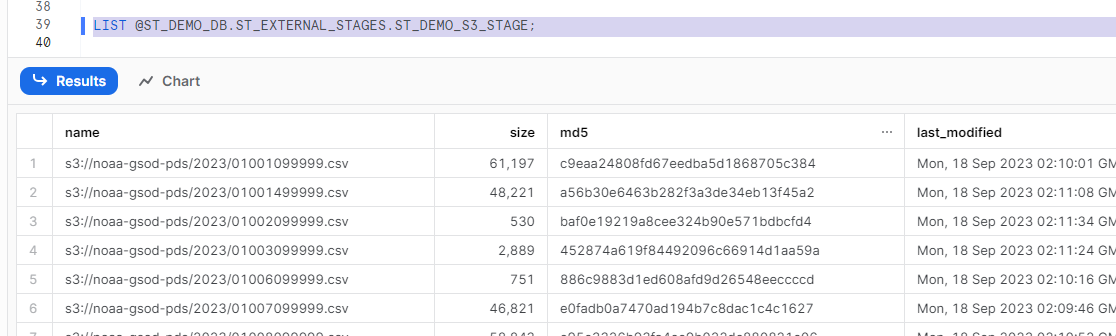
A common tendency to list the files in a stage is to try “SELECT * FROM STAGE_NAME” (we are SQL Developers after all…), which results in an error. In order to list the files from an external, or internal, stage, we can use the LIST command, followed by the name of the stage. In order to reference a stage in the list command, you’ll need to add “@” prior to the name(i.e. @ST_DEMO_DB.ST_EXTERNAL_STAGES.ST_DEMO_S3_STAGE). Using the LIST command results in the following:
List Files with DIRECTORY
When creating the s3 stage, we also enabled directory tables on the stage. With that feature enabled, we can also use the DIRECTORY table function to query the list of files with a SELECT statement.
SELECT * FROM DIRECTORY(@ST_DEMO_DB.ST_EXTERNAL_STAGES.ST_DEMO_S3_STAGE);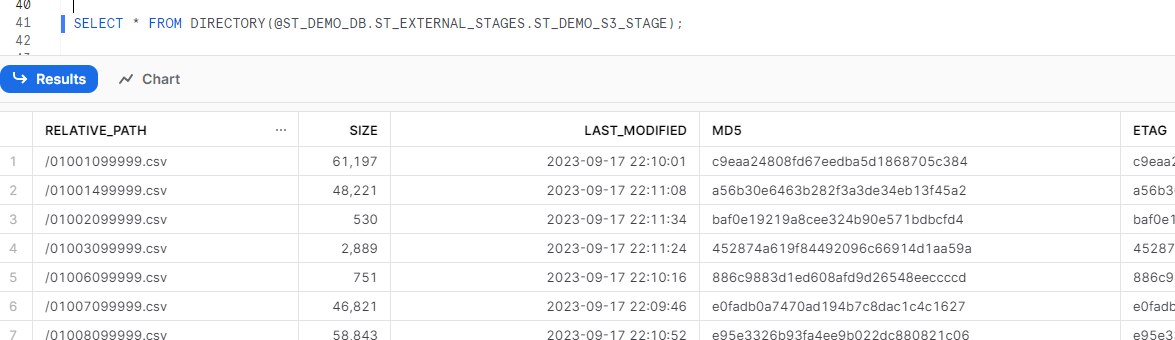
Conclusion
Connecting to an S3 bucket with Snowflake is relatively simple with Snowflake’s built in integrations. We’ve now created an internal and external stage with Snowflake using SQL, but what how to we use those staged files to load data in? We’ll discuss that in the next post in this series and load the data from our internal stage location to a table using the COPY command.
 Eric Heilman
One thought on “Snowflake: Connect to S3 Bucket”