
In the previous articles in this series, we’ve created a named internal stage and connected to an Amazon S3 Bucket as an external stage. So now what? We need to load the data from the staged file to a table so that we can execute SQL Commands against the data as needed. In this post we’ll cover:
Import Setup
Prior to loading data from the stage location, we need to setup a target table to load into. For this example, we will use the “bad” phone number file uploaded in the internal stage from a previous post. Another cool feature of the Snowflake copy command is it can use compressed files as a source. To demonstrate this, I’ve compressed the sample file using GZip as a .gz file.

What’s in the file? This file is a .csv file with three (3) columns using a comma separator, header row and no double quotes around the data. Knowing these file format options will be important in a few steps.

Create Target Table
Now that the file format is known, we need to create the target table to load the data. The table schema should match that of the file to keep the copy command simple, or we could apply certain transformations to the copy command if we had additional columns in the target such as inserted date, or username, etc. For now, we’ll keep it the same as the source file to keep things simple. Also, for this exercise, we’ll create a new schema “RAW_DATA” and create the table in the new schema.
Notice that in the raw file, the invalid_timestamp column contains the time zone offset. To maintain this level of detail, the target column should bet setup as a TIMEZONE_TZ data type in order to maintain the same level of detail.
USE ROLE ST_DEMO_ROLE;
USE DATABASE ST_DEMO_DB;
CREATE OR REPLACE SCHEMA RAW_DATA;
USE SCHEMA ST_DEMO_DB.RAW_DATA;
CREATE TABLE C_INVALID_PHONE
    (
    PHONE_NUMBER VARCHAR(15),
    INVALID_REASON VARCHAR(50),
    INVALID_TIMESTAMP TIMESTAMP_TZ
    );
Copy Data
We’ve now created the target table and we can load the contents of the file from the stage location using the COPY command. Remember those file format details we mentioned earlier? You’ll need them here. We will need to specify what the format of the file is in order to load the data.
TRUNCATE TABLE ST_DEMO_DB.RAW_DATA.C_INVALID_PHONE;

COPY INTO ST_DEMO_DB.RAW_DATA.C_INVALID_PHONE
FROM @ST_DEMO_DB.ST_INTERNAL_STAGES.ST_DEMO_STAGE
FILES = ('c_invalid_phone.csv.gz')
FILE_FORMAT = (
    TYPE=CSV
    COMPRESSION=GZIP
    SKIP_HEADER=1
    FIELD_DELIMITER=','
    )
Notice that we specify the target we’re copying into, the source we’re copying from, the file name, and the file format parameters from earlier. I also included a TRUNCATE command on the table to ensure that the target is empty. Additionally, that clears any of the metadata associated with prior file loads. Snowflake keeps track of the files loaded to a table and unless specified in the command, won’t load the data a second time.
The copy into command also can accept a regex expression for the file pattern. This is especially helpful if loading multiple files that all have a similar naming convention.
After running the command above, you’ll get an output like the one below showing how many rows were parsed in the file and how many loaded. Other options in the copy command such as VALIDATION_MODE and SKIP_FILE can help identify errors on a load, but we’re not going to cover those in this post.

File Format
Now that we have the target table created and loaded it, we’re all set, right? Well, technically. We can load the data including all the file format parameters in the copy command as shown above. If this were a one-time load of a file that may make the most sense; however, most data engineers are building processes, and who wants to keep writing (or copying) the same code over and over?
With Snowflake file formats you can create a file format object and then reference it in the copy command. An advantage to creating file formats is they are not necessarily file specific, you can create generic ones and use them in multiple load processes. File formats can even be applied to stages if all the files in the stage are the same format, which can also save some coding time.
First, let’s create the new file format object in the RAW_DATA schema for our sample file. In the example below, I used the file format name to describe the file. Doing so on a regular basis could make for long file format names, so adjust the name accordingly based upon your organization’s naming convention rules. I like to start it with “FMT” to indicate the object is a file format.
USE ROLE ST_DEMO_ROLE;
USE SCHEMA ST_DEMO_DB.RAW_DATA;

CREATE OR REPLACE FILE FORMAT FMT_CSV_GZIP_SKIP_HEADER_1
    TYPE = CSV /*CSV INDICATES A TEXT-BASED FILE*/
    COMPRESSION = GZIP /*FILES ARE GZIP COMPRESSED*/
    SKIP_HEADER = 1 /*SKIP FIRST ROW (CONTAINS HEADER) */
    FIELD_DELIMITER=',' /*COLUMNS ARE DELIMITED BY COMMA*/
    ;
Use File Format with Copy Command
Now that we’ve setup our file format, we can use it in our copy command. Again, notice the TRUNCATE command is in play so that we can reload the same file a second time.
TRUNCATE TABLE ST_DEMO_DB.RAW_DATA.C_INVALID_PHONE;

COPY INTO ST_DEMO_DB.RAW_DATA.C_INVALID_PHONE
FROM @ST_DEMO_DB.ST_INTERNAL_STAGES.ST_DEMO_STAGE
FILES = ('c_invalid_phone.csv.gz')
FILE_FORMAT = (FORMAT_NAME = FMT_CSV_GZIP_SKIP_HEADER_1);
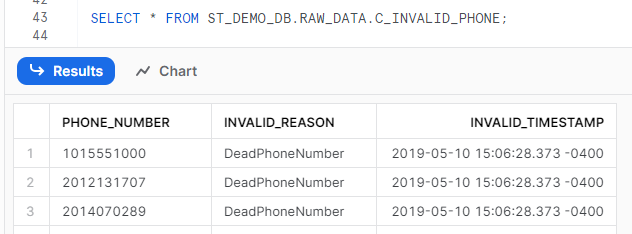
Now that the file is loaded to our table, we can select the data as we would with a normal table:
Using File Format with Staged Data
A file format can also be used to query data directly from a stage location, treating the staged file as a table of sorts. One caveat to doing so is you cannot use “SELECT *” to get all the columns in the file, so you will need to know the schema of the file to query it. Columns in the staged table are referenced with $ notation in which columns are referenced in the pattern for $COL_NO, where COL_NO is the column number of the file, starting with 1. There are also “hidden” metadata columns you can reference as well.
SELECT
$1 as PHONE_NUMBER,
$2 as REASON,
$3 as TIMESTAMP,
METADATA$FILENAME as STG_FILE
FROM @ST_DEMO_DB.ST_INTERNAL_STAGES.ST_DEMO_STAGE
(
FILE_FORMAT => FMT_CSV_GZIP_SKIP_HEADER_1
,PATTERN => 'c_invalid_phone.csv.gz'
);
Conclusion
Loading data from a staging location can be done in just a few commands and is one of the many powerful tools in the Snowflake toolbox. In this post, we covered:
- creating a table
- loading a file from a stage location
- creating a file format
- loading data from stage using the file format
- querying data in a stage directly
Imagine the endless possibilities for your clients or organization for loading data to Snowflake, and this is only scratching the surface!
 Eric Heilman