
Previously, I walked through loading NOAA Weather Station location data from NOAA’s public S3 bucket into Snowflake, but what now? We have a list of hundreds of weather stations with coordinates, but what can we do with them? What if we plotted them on a map, but only showed those stations within a certain distance of a known point? This use case allows us to use a Streamlit in Snowflake widget as well as Snowflake’s Geospatial functions to quickly map station locations.
Before we get started, the code shown in this demo assumes the following:
- NOAA Weather Station loaded in Snowflake from the prior demo
- Objects needed to support Streamlit in Snowflake are in place from prior demos (database, warehouse, etc.).
Streamlit Setup
Before diving into Python to generate the Streamlit app, we’ll first set up the Snowflake objects needed to run the Streamlit app. In the setup script below, we create a new internal Snowflake stage specific to our new app, followed by the creation of the Streamlit object itself. Note that the “MAIN_FILE” parameter is set to ‘noaa_weather_stations.py’. You’ll need to make sure this parameter matches the Python file name you’ll upload to the stage.
Finally, grant USAGE on the app to the appropriate role for your use case. In my account, I have a role “ST_APP_USERS” that is inherited by other roles. By granting usage for ST_APP_USERS, I leverage Snowflake’s RBAC and Role Hierarchies to simplify my app access and security.
/*CREATE SCHEMA AND STAGES*/
USE ROLE ST_DEMO_ROLE;
/*SWTICH DB AND WAREHOUSE*/
USE DATABASE STREAMLIT_DB;
USE WAREHOUSE STREAMLIT_XS_WH;
/*SWITCH TO SCHEMA*/
USE SCHEMA STREAMLIT_STAGES;
/*CREATE STAGE WITH DIRECTORY*/
CREATE STAGE STG_NOAA_WEATHER
    DIRECTORY = (ENABLE=TRUE);
/*USE APPS SCHEMA*/
USE SCHEMA STREAMLIT_APPS;

/*CREATE STREAMLIT APP*/
CREATE STREAMLIT NOAA_WEATHER_STATIONS
    ROOT_LOCATION = '@STREAMLIT_DB.STREAMLIT_STAGES.STG_NOAA_WEATHER'
    MAIN_FILE = 'noaa_weather_stations.py'
    QUERY_WAREHOUSE = STREAMLIT_XS_WH
    COMMENT = 'Display Location of NOAA Weather Stations';

/*GRANT PRIVILEGES TO APP USERS ROLE TO RUN APP*/
USE SCHEMA STREAMLIT_DB.STREAMLIT_APPS;
GRANT USAGE ON STREAMLIT NOAA_WEATHER_STATIONS TO ROLE ST_APP_USERS;
Coding the App
In your favorite Python IDE or text editor, create a new .py file and name it ‘noaa_weather_stations.py’ (or whatever you set your MAIN_FILE parameter to above).
Import Libraries
Start by importing the necessary libraries to run Streamlit in Snowflake or a standalone Streamlit app. The Streamlit app we’ll build can run standalone or within Snowflake. Running the app outside of Snowflake opens up more options with the mapping widget and a few others; however, I’m only including options that function in both flavors so the code can run wherever you choose.
#IMPORT STREAMLIT LIBRARY
import streamlit as st
#IMPORT SNOWPARK
import snowflake.snowpark as sp
#IMPORT SNOWPARK SESSION
from snowflake.snowpark.context import get_active_session
Connect to Snowflake
Next, create a function to build the Snowflake connection. Why use a function? I like this setup when I’m testing Streamlit and want to run it as a stand-alone app or from within Snowflake. It allows the configuration of the connection as needed without constantly changing the code. In this demo, I’m using a username/password in plain text from a dictionary, note this is not the best security practice, but is sufficient for demo purposes.
The function open_session() will attempt to use get_active_session() from Snowflake first, if that causes an exception, then a connection is established using the credentials provided.
##CREATE NEW FUNCTION TO TRY GET ACTIVE SESSION FROM SNOWPARK
##OTHERWISE BUILD CONNECTION
def open_session():
    snow_session = None

    try:
      snow_session = get_active_session()
    except:
      #READ CREDS INTO DICTIONARY
        creds = {
            "account":"YOUR ACCOUNT",
            "user":"YOUR USERNAME",
            "password":"YOUR PASSWORD",
            "database":"YOUR DATABASE",
            "schema":"YOUR SCHEMA",
            "role":"YOUR ROLE",
            "warehouse":"YOUR WAREHOUSE"
        }
        #BUILD SESSION
        snow_session = sp.Session.builder.configs(creds).create()

    return snow_session


#CREATE A SESSION VARIABLE
session = open_session()
Identify Points of Origin
For simplicity, we’ll specify a few specific locations that will serve as the point of origin for plotting the weather stations. I chose five Snowflake office locations listed on their website and used the map links they provided to capture the Latitude and Longitude of each office. We’ll need this for the distance calculations. Add these locations to a dictionary variable that we’ll use throughout the demo.
office_locations = {
    "offices":{
        "Bozeman, MT":{
            "Latitude":"45.6779796",
            "Longitude":"-111.0348163"
        },
        "San Mateo, CA":{
            "Latitude":"37.553252",
            "Longitude":"-122.3062339"
        },
        "Bellevue, WA":{
            "Latitude":"47.6183091",
            "Longitude":"-122.1969603"
        },
        "New York, NY":{
            "Latitude":"40.7544099",
            "Longitude":"-73.9856036"
        },
        "Atlanta, GA":{
            "Latitude":"33.8460342",
            "Longitude":"-84.37203"
        }
    }
}
Add Input Widgets
First up on our app are the header and the input widgets to set our point of origin and radius distance in miles. I chose to use a column layout to keep things organized and limit the sizes of the selectboxes. My initial setup didn’t use columns and the select boxes were HUGE!
Additionally, we’ll use the input values to capture the Lat/Long of the chosen Snowflake office location for our query.
#GIVE THE PAGE A TITLE
st.header("NOAA Weather Station Location")


##ADD SOME COLUMNS FOR SELECTION BOXES
col1,col2,col3 = st.columns([1,1,3])
with col1:
    snow_office = st.selectbox(label="Choose a Snowflake Location:",options=sorted(office_locations["offices"]))
with col2:
    radius = st.selectbox(label="Radius (in miles)",options=[10,15,25,50,100])

#CAPTURE OFFICE LAT/LONG FROM DICT
lat_off = office_locations["offices"][snow_office]["Latitude"]
long_off = office_locations["offices"][snow_office]["Longitude"]
Identifying Stations
To identify weather stations within our specified distance, we’ll have to use two of Snowflake’s Geospatial functions – ST_MAKEPOINT and ST_DWITHIN. ST_MAKEPOINT creates a geography point from an input longitude and latitude. Why is that important? The other Geospatial functions like ST_DISTANCE or ST_DWITHIN require the inputs to be geography objects. ST_DWITHIN returns a boolean value indicating if the distance between two points is within a set distance in meters. In our app we specify the distance in miles, so we’ll do a rough conversion by multiplying the miles value by 1609 to get an approximation in meters.
We’ll set up a Python string for the station_sql first, using placeholders for the point of origin lat/long and the distance in miles. Next, load the query results into a data frame using station_sql.format() to substitute desired values for our placeholders.
 #GET THE NOAA WEATHER STATIONS WITHIN THE RADIUS SPECIFIED
station_sql = """
SELECT LONGITUDE,LATITUDE FROM ST_DEMO_DB.RAW_DATA.NOAA_STATIONS
WHERE ST_DWITHIN(ST_MAKEPOINT(LONGITUDE,LATITUDE),ST_MAKEPOINT({long},{lat}),{rad}*1609)
"""

#FORMAT THE QUERY AND RETURN DATA FRAME
df_map = session.sql(station_sql.format(long=long_off,lat=lat_off,rad=radius))
Map the Stations
Next, we’ll add a descriptive line of text indicating what we’re showing on the map – again using a base string and the format function. Last, but not least, add the map with st.map().
st.map() displays a scatterplot where the data point locations are defined by a LAT/LONG pair. In a stand-alone Streamlit app, other attributes such as point size and color can be specified; however, these attributes are not available in Streamlit in Snowflake yet, so I’ve left them out for now.
#USE LAT/LONG DATA FROM DF TO PLOT WEATHER STATIONS
disp_text = """
Showing NOAA weather stations within {rad} miles of {office} ({lat},{long})
"""
st.write(disp_text.format(rad=radius,office=snow_office,lat=lat_off,long=long_off))
#PLOT STATIONS ON MAP
st.map(df_map)
Deploy the App
Once you’ve saved your .py file locally, log in to your Snowflake account and upload it to the stage created during the setup. Next, navigate to your list of Streamlit apps and run the NOAA_WEATHER_STATIONS app.
If all goes according to plan, when the app finishes baking, you should see something similar to this:
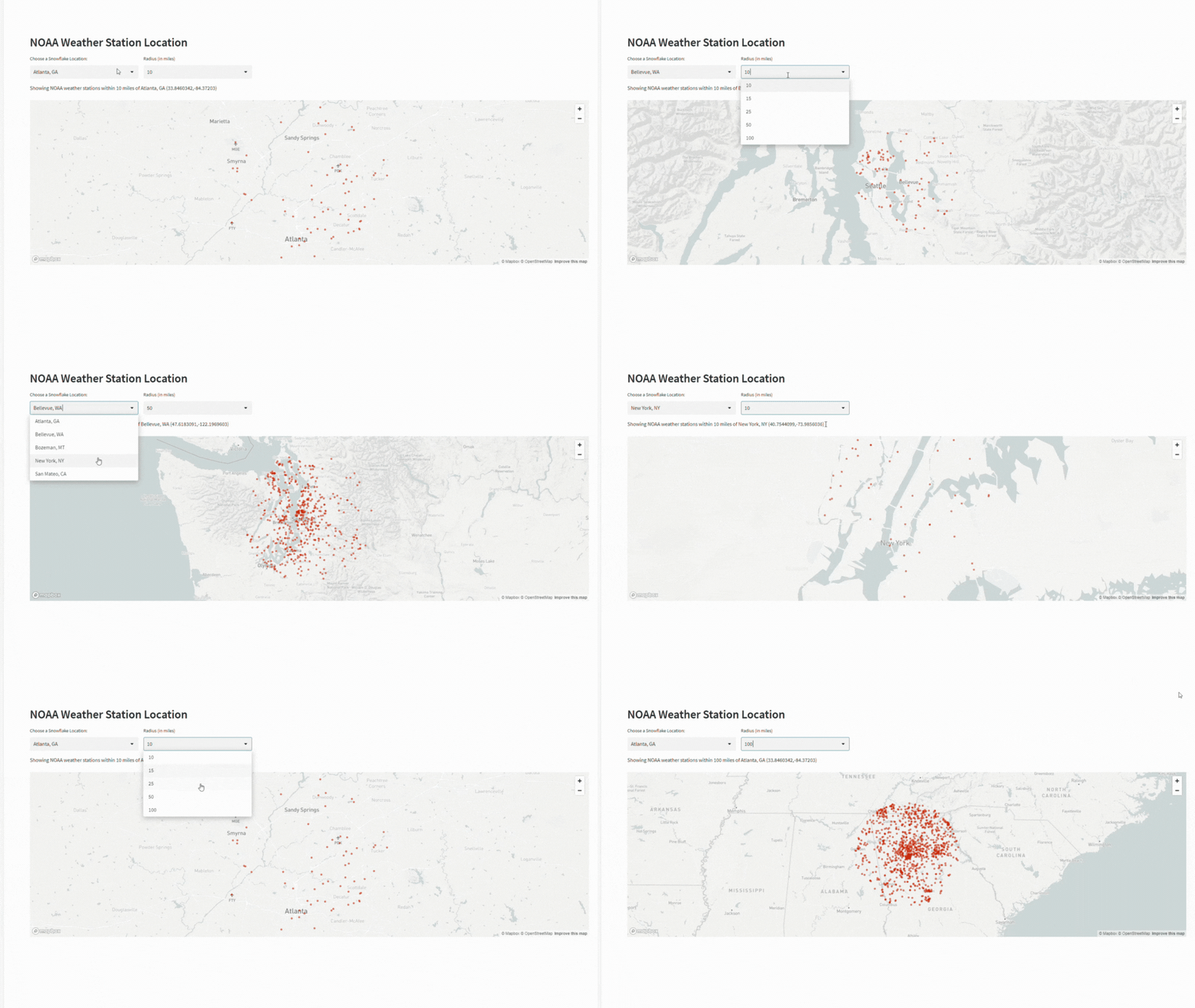
Notice that as you change the office location and/or the distance option, how the map refreshes automatically.
Conclusion
In this demo, we set up a new Streamlit in Snowflake app to display weather station locations within a specified distance from a point of origin. While the points of origin were specified, the app could be extended to include more robust map searches through external API calls or other data sets.
The full set of setup SQL and the app code is available on my Snowflake Demo repository.
 Eric Heilman
One thought on “Exploring NOAA Weather Stations: Mapping Locations Within Snowflake Using Streamlit”