
Streamlit in Snowflake is an awesome tool for rapidly creating and deploying data applications to the data cloud. What if you wanted to give your app a little character, or branding with an image? Streamlit has you covered! In this article, I’ll cover a couple of ways to add images to your Streamlit in Snowflake app.
External URL
In a previous article, I created a demo app showcasing the new Cortex AI features of Snowflake. The app itself was relatively plain – just a header, some tabs, and the input boxes. I want to spice it up a bit and add the Snowflake logo to the app. Using the link to a sample logo from the Snowflake branding guidelines, I can add the Snowflake logo to the header with one line of code.
st.image(image="https://www.snowflake.com/wp-content/themes/snowflake/assets/img/brand-guidelines/logo-sno-blue-example.svg")
st.header("Snowflake Cortex Demo")

Internal Stage
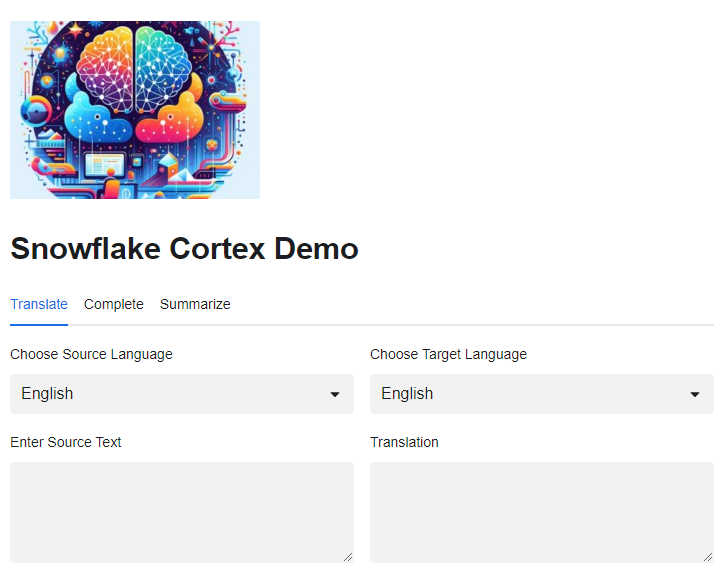
My app resides on an internal stage in Snowflake and perhaps the image I want to add to my app isn’t in the public domain. I can easily upload it to the stage and still add it to my app in one line of code. For this example, I’ll upload an image to a new folder on my STG_CORTEX stage called “images”. Once the image is uploaded, I can reference its path in my app.
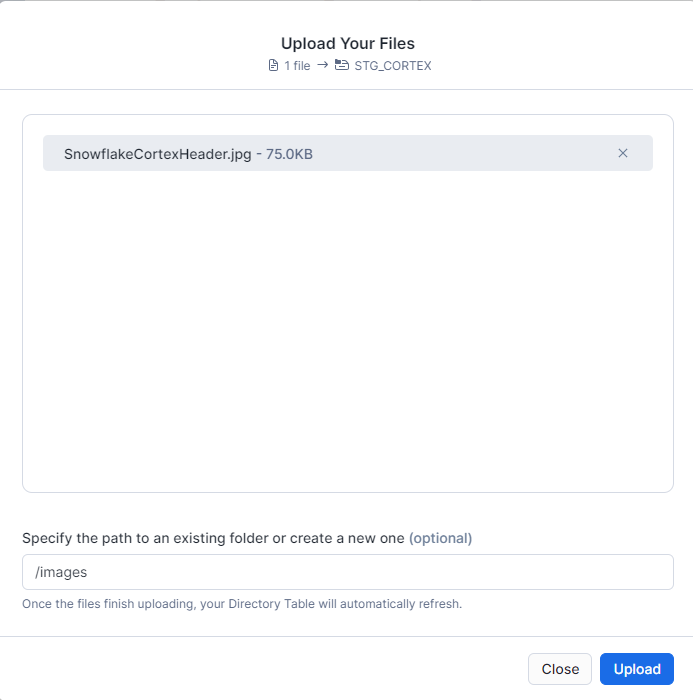
st.image(image="images//SnowflakeCortexHeader.jpg",width=250)
st.header("Snowflake Cortex Demo")
Conclusion
Using Steamlit in Snowflake to quickly build and prototype apps is one of the many benefits of the Snowflake Data Cloud ecosystem. In this demo, I showed how easy it is to add some pizazz to your app by including images from a link or from the internal stage where the app is stored.
 Eric Heilman
One thought on “Spicing Up Your Snowflake Data Apps with Custom Images”