
Snowflake: Table-Driven Row Access Policies

In a previous article, I showed how to set a row access policy on a view to limit the rows returned by a query dependent upon the user’s role in Snowflake. The row access policy had the roles I cared about hard coded into the policy code; however, in a real-world scenario, that isn’t manageable as systems grow. Remember that to change the row access policy code, the policy must be dropped from each object referencing it. In large data platforms, that could be a lot of objects and extremely time-consuming.

Row Access Policy Review

Snowflake row access policies only return a true or false value, which tells the query engine whether or not to output the row to the query results. In the example I shared previously, the REGION_NAME value and the user’s role were used in the row access policy to return a true or false value. Also, recall that I used hierarchical roles to allow the SALES_MGR role to “see” the same regions as both the AM_EU_SALES and NON_AM_EU_SALES roles without explicitly specifying the SALES_MGR role in the access policy.

Table-Driven Row Access Policy

So why would I want to adjust my row access policy when it works just fine now? Simple – change management. Using a table to drive the row access policy isn’t a magic bullet. It will ease the pain of making some changes; however, if the overall row access policy needs a change, such as adding a new column to evaluate, the policy must still be dropped from all objects referencing it first before updating the policy code.

Table Setup

For this example, I’ll create a simple table that stores the USER_ROLE and REGION_NAME values. This table will be used as the source for the table-driven row access policy. Additionally, I’ll drop the existing row access policy from the view VW_SALES_DATA. Finally, I’ll populate the table with the USER_ROLE and REGION_NAME values corresponding to the existing row access policy. Note that just like the current policy, SALES_MGR will not be inserted into the table.

/*CONNECT TO PROPER DB/SCHEMA/ROLE*/
USE ROLE ST_DEMO_ROLE;
USE SCHEMA STREAMLIT_DB.STREAMLIT_DATA;
USE WAREHOUSE ST_DEMO_XS_WH;

/*CREATE TABLE FOR ROLE STORAGE*/
CREATE OR REPLACE TABLE TBL_ROW_ACCESS(
    ROW_ID NUMBER(5,0)
        AUTOINCREMENT START WITH 1 INCREMENT BY 1
    ,ROLE_NAME VARCHAR(100)
    ,REGION_NAME VARCHAR(100)
);


/*DROP CURRENT ROW ACCESS POLICY*/
ALTER VIEW VW_SALES_DATA
    DROP ROW ACCESS POLICY
        REGION_SALES_ACCESS;

/*LOAD DATA TO TABLE BASED 
ON CURRENT ROW ACCESS POLICY*/
TRUNCATE TABLE TBL_ROW_ACCESS;

INSERT INTO TBL_ROW_ACCESS(REGION_NAME,ROLE_NAME)
WITH RG AS(
SELECT REGION_NAME FROM VW_SALES_DATA GROUP BY REGION_NAME
)
SELECT
REGION_NAME,
CASE
        WHEN  REGION_NAME IN('AMERICA', 'EUROPE') THEN 'AM_EU_SALES'
        WHEN REGION_NAME NOT IN('AMERICA', 'EUROPE') THEN 'NON_AM_EU_SALES'
        ELSE NULL
    END AS ROLE_NAME
FROM
    RG;

/*VERIFY ENTRY*/
SELECT * FROM TBL_ROW_ACCESS;
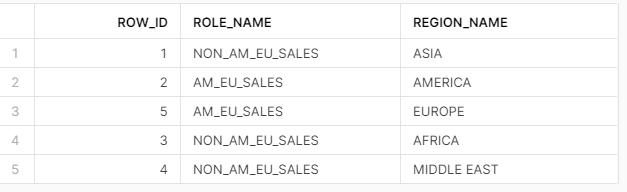
Row Access Query Results

Row Access Policy

Remember that row access policies need only return true or false. As such, I can use the EXISTS keyword to return true or false from a query against TBL_ROW_ACCESS using the current user’s role and the view’s region name value to determine if the user has access to the row. As I did in the prior policy, the IS_ROLE_IN_SESSION function helps traverse the hierarchical roles for access. Once the policy is updated, I’ll also apply it to VW_SALES_DATA

/*ALTER ROW ACCESS POLICY
TO USE TABLE*/
CREATE OR REPLACE ROW ACCESS POLICY REGION_SALES_ACCESS
    AS (REGION_NAME VARCHAR) RETURNS BOOLEAN -> 
    EXISTS(
        SELECT 1 FROM TBL_ROW_ACCESS AS RA
        WHERE IS_ROLE_IN_SESSION(RA.ROLE_NAME)
        AND RA.REGION_NAME = REGION_NAME);
    
/*APPLY TO VIEW*/
    ALTER VIEW VW_SALES_DATA
ADD
    ROW ACCESS POLICY
REGION_SALES_ACCESS ON(REGION_NAME);

Verifying Access

Using the same code block from the previous article, I’ll run through each role and capture the list of regions it can access from VW_SALES_DATA. The output from this query should look familiar as AM_EU_SALES and NON_AM_EU_SALES have limited regions, SALES_MGR has all regions, and ST_DEMO_ROLE has no regions listed.

/*CREATE TEMP TABLE
TO STORE RESULTS
*/
USE ROLE ST_DEMO_ROLE;
CREATE OR REPLACE TEMPORARY TABLE TBL_ROLE_ACCESS(
    ROLE_NAME VARCHAR(100),
    ALLOWED_REGIONS VARCHAR(100)
);
GRANT INSERT ON TABLE TBL_ROLE_ACCESS TO ROLE SNOW_SALES;


/*RUN INSERT FOR EACH ROLE*/
USE ROLE AM_EU_SALES;
USE ROLE NON_AM_EU_SALES;
USE ROLE SALES_MGR;
USE ROLE ST_DEMO_ROLE;

INSERT INTO TBL_ROLE_ACCESS
SELECT DISTINCT CURRENT_ROLE(),
LISTAGG(DISTINCT REGION_NAME,',') WITHIN GROUP (ORDER BY REGION_NAME) AS ALLOWED_REGIONS
FROM VW_SALES_DATA;

/*SHOW ALLOWED REGIONS BY ROLE*/
SELECT * FROM TBL_ROLE_ACCESS;
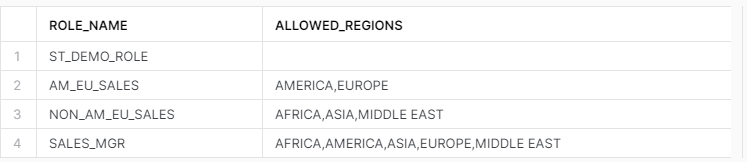
Region Access By Role

Real-World Use Case

Now that I have a row access policy added to VW_SALES_DATA, which also drives the MY_FIRST_STREAMLIT app I’ve built in other articles, I’ve “broken” my app – it displays no data. The app runs under the context of the ST_DEMO_ROLE role, which doesn’t have access to any data under the new row access policy. Thankfully, now that I’ve converted to a table-driven approach, I can simply add records to TBL_ROW_ACCESS for the regions I want ST_DEMO_ROLE to access and the app will be repaired.

Streamlit App Unable to Access Data
/*FIX STREAMLIT*/
USE ROLE ST_DEMO_ROLE;
USE SCHEMA STREAMLIT_DB.STREAMLIT_DATA;

INSERT INTO TBL_ROW_ACCESS
    (ROLE_NAME,REGION_NAME)
SELECT
    'ST_DEMO_ROLE' as ROLE_NAME
    ,REGION_NAME
FROM TBL_ROW_ACCESS;
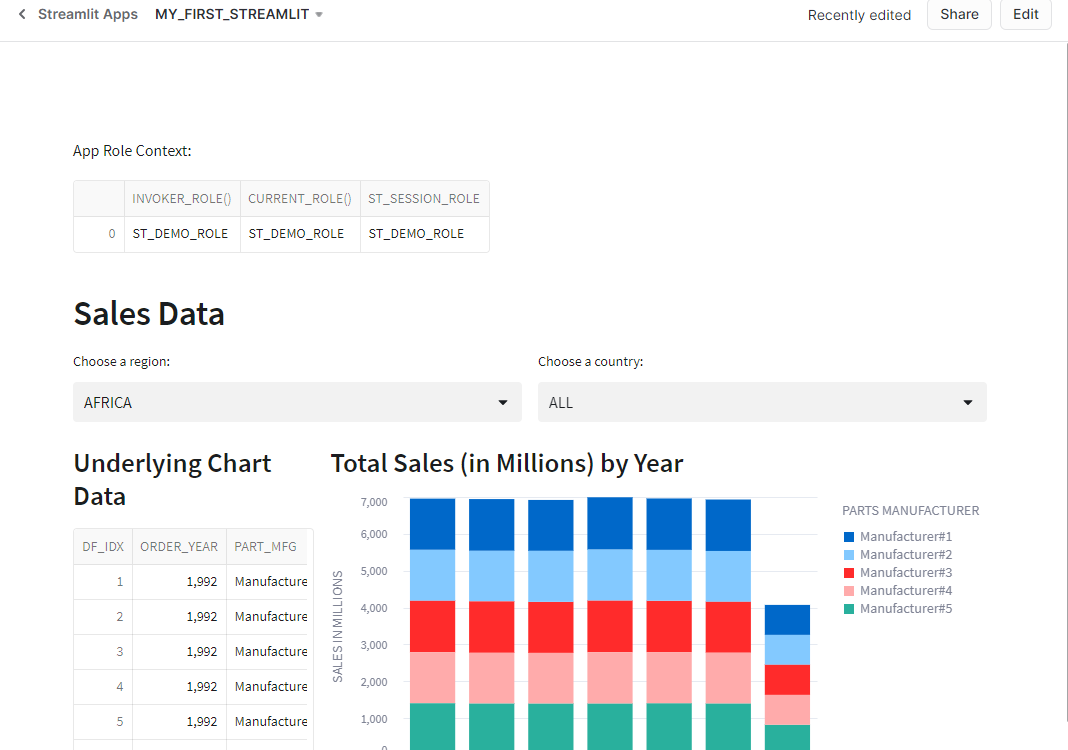
Streamlit App with Updated Access

Conclusion

Snowflake row access policies can be quite powerful for limiting data access. Like many things in Snowflake, proper planning during policy implementation will pay dividends in the long run for ease of management. The example shown here is relatively basic but illustrates how to create a table to manage access, create or update a row access policy to use the table, and a real-world example of updating data access using the table.

Streamlit: Application of Snowflake Row Access Policies

In my last post, I showed how to set up hierarchical roles in Snowflake and then apply a row access policy based on those roles. In this article, I’ll show an application of those policies using a Streamlit app. An important note is that this is not a native Streamlit app in Snowflake. As of the writing of this article, native Streamlit apps do not support changing the session role when querying Snowflake.

Assumptions

For this article, I assume that readers already have a Python IDE installed ( I use VS Code) and have installed the Streamlit, Snowpark, Altair, and Pandas libraries using pip.

Streamlit App Setup

First, I’ll download the latest version of “My_First_Streamlit.py” from my recent stacked bar chart demo from my Snowflake stage and open it in VS Code. Since I need to build a connection to Snowflake directly and not use the built-in native app session, I’ll need to import the Snowpark library.

#IMPORT STREAMLIT LIBRARY
import streamlit as st
#IMPORT SNOWPARK
import snowflake.snowpark as sp
#IMPORT SNOWPARK SESSION
from snowflake.snowpark.context import get_active_session
#IMPORT PANDAS
import pandas as pd
#IMPORT ALTAIR CHARTS
import altair as alt

Create Session

So as not to rebuild the entire app, I’ll add a new function definition that will attempt to use get_active_session() from the native app, but if an error occurs, the function will build a session manually. I’ll use this function to set the session variable so that the rest of the app will execute as expected without alteration.

##CREATE NEW FUNCTION TO TRY GET ACTIVE SESSION FROM SNOWPARK
##OTHERWISE BUILD CONNECTION
def open_session():
    snow_session = None

    try:
      snow_session = get_active_session()
    except:
      #READ CREDS INTO DICTIONARY
        creds = {
            "account":"YOUR_ACCOUNT_LOCATOR",
            "user":"USERNAME",
            "password":"PASSWORD",    
            "database":"STREAMLIT_DB",
            "schema":"STREAMLIT_DATA",
            "role":"SALES_MGR",
            "warehouse":"STREAMLIT_XS_WH"
        }        
        #BUILD SESSION
        snow_session = sp.Session.builder.configs(creds).create()

    return snow_session

Role Selectbox

To simulate different users with different roles logging into the app, I’ll use the CURRENT_AVAILABLE_ROLES() Snowflake function to obtain the names of the roles available to my account, and then filter it to only those “Sales Roles” needed for this sales app. I’ll also add a new Python function, get_roles(), to the app that retrieves the role names from Snowflake, displays them in a Streamlit select box, and then sets the session role based on the chosen value.

def get_roles():
    role_sql ="""
    SELECT REPLACE(VALUE,'"','') AS ROLE_NAME
    FROM TABLE(FLATTEN(input => PARSE_JSON(CURRENT_AVAILABLE_ROLES())))
    WHERE VALUE LIKE '%SALES%' AND VALUE != 'SNOW_SALES'
    ORDER BY VALUE
    """
    role_df = session.sql(role_sql).collect()
    current_role = st.selectbox("Choose a role:",options=role_df)
    session.use_role(current_role)

Connect and Add Role Chooser to the App

Using the new Python functions, I’ll make a couple of small updates to the app to set the connection variable and display the role chooser in a sidebar on the app.

#CREATE A SESSION VARIABLE
session = open_session()


#ADD ROLE CHOOSER TO SIDEBAR
with st.sidebar:
    get_roles()

Run Streamlit Locally

Since I’m using VS Code, running the streamlit app locally is quite easy. From a new terminal window in VS Code, use the cd command to change the local directory to the home of the .py file for this app. Then execute the command streamlit run filename.py

The Streamlit library will handle the rest and open the app in your default browser in a local session.

Run App from Terminal

Role Selection and Data Access

Now that the app is running, by choosing different roles in the role chooser Selectbox, the app queries the Snowflake data using that role. By doing so, the row access policy on the VW_SALES_DATA view is enforced. Notice that the SALES_MGR role can see all regions in the region selectbox, but AM_EU_SALES is limited to only America and Europe. Similarly, NON_AM_EU_SALES is limited to regions that are NOT America or Europe. The list of regions for each role matches those shown when initially setting the row access policy in my last post.

Streamlit App Running Locally

Conclusion

Exposing data in an app or reporting tool using row access policies is one of the next logical steps to “activate” your data. The example shown here could be updated to require a Snowflake login to remove the “role chooser” and apply the row access policy.

Unfortunately, the methods used in this demo are not currently supported in Native Streamlit apps. Hopefully, as new features are added, there will be additional support added to allow native apps to execute SQL commands as other roles based upon the user running the app.

Snowflake: Row Access Policy with Hierarchical Roles

“Row Access Policy with Hierarchical Roles” is a mouthful! What in the world am I talking about? I’ll start with hierarchical roles since most organizations have some hierarchical people reporting structure. Next, I’ll discuss Snowflake’s row access policy and how it applies to hierarchical roles.

Hierarchical Roles

Snowflake uses role-based access control (RBAC) for object security. A role itself is an object to which privileges are granted and in turn a role can be assigned to a user. Roles can also be assigned to other roles therefore allowing “parent” roles to inherit the privileges of their “children”.

When designing a security model for Snowflake, it is imperative to understand and balance data security needs with the relationships between users who access the data. What data access privileges are common and could be inherited through hierarchical data roles in Snowflake?

Row Access Policy

Snowflake utilizes row access policies to allow data admins to set row-level security on data. Applying a row access policy on a table or view limits data returned by queries according to the definition of the row access policy. Policies can be as simple or complex as needed for the situation. See the Snowflake doc for more details.

Note: Row Access Policies are only available on Snowflake Enterprise Edition and above.

Sales Org Example

Imagine a sales organization where the sales manager has two salespersons reporting to them. Each salesperson is responsible for one or more sales regions. Each salesperson should only access the data for their regions; however, the sales manager should have access to all regions. This sales org is an example of where a row access policy on a global view of all data would be handy to limit the data for each user.

Business Requirement for Data Access

The “non-code” definition for how to apply the data access for this example is as follows:

  1. Only members of the sales org can see sales data.
  2. The Americas/Europe sales team can only see data for the AMERICA and EUROPE regions.
  3. The non-America/Europe sales team can see data for all regions other than AMERICA and EUROPE.
  4. Sales Managers can see data for all regions.

Creating the Sales Org Roles in Snowflake

To create and apply a row access policy, I’ll first need the roles defined in my Snowflake instance. I’ll need a sales manager role and two salesperson roles that are children of the sales manager role. Additionally, to apply those “common” privileges, I’ll need a generic role that is a shared child of both salesperson roles. Data object privileges will be applied to the shared child role which will then be inherited by all the parent roles. 

Current Role Hierarchy
/*CREATE NEW ROLES*/
USE ROLE SECURITYADMIN;

--SALES MANAGER
CREATE ROLE SALES_MGR;
GRANT ROLE SALES_MGR TO ROLE SYSADMIN;

--AMERICA/EUROPE SALES
CREATE ROLE AM_EU_SALES;
GRANT ROLE AM_EU_SALES TO ROLE SALES_MGR;

--NON AMERICA/EUROPE SALES
CREATE ROLE NON_AM_EU_SALES;
GRANT ROLE NON_AM_EU_SALES TO ROLE SALES_MGR;

--CHILD GRANT FOR ACCESS
CREATE ROLE SNOW_SALES;
GRANT ROLE SNOW_SALES TO ROLE AM_EU_SALES;
GRANT ROLE SNOW_SALES TO ROLE NON_AM_EU_SALES;
Role Hierarchy after Sales Org build

Apply Permissions to Data Objects

With the roles created as shown above, the next step is to grant the minimum privileges needed to query the data in the sales data view. I am reusing the VW_SALES_DATA from my Streamlit demo for this example.

--GRANT PERMISSIONS
/*VWH*/
USE ROLE ACCOUNTADMIN;
GRANT USAGE ON WAREHOUSE ST_DEMO_XS_WH TO ROLE SNOW_SALES;

/*SALES DATA VIEW*/
USE ROLE ST_DEMO_ROLE; --> DATA OWNER ROLE
GRANT USAGE ON DATABASE STREAMLIT_DB TO ROLE SNOW_SALES;
GRANT USAGE ON SCHEMA STREAMLIT_DATA TO ROLE SNOW_SALES;
GRANT SELECT ON STREAMLIT_DB.STREAMLIT_DATA.VW_SALES_DATA TO ROLE SNOW_SALES;

Create and Apply the Row Access Policy

Now that roles and permissions are all set, I’m ready to create my row access policy and add it to the sales data view. Referencing the business requirements above, I see that I will need to limit the data to only the sales org and that the REGION_NAME column will be how the data is restricted. Also, since I have applied hierarchical roles to the sales org in Snowflake, I can use the function IS_ROLE_IN_SESSION to take advantage of the hierarchical roles.

The IS_ROLE_IN_SESSION function returns TRUE if the role name passed to it is in the current hierarchical chain of the role executing the query, otherwise, it will return false. The function validates using both primary and secondary roles to determine inheritance. Since the SALES_MGR role inherits both the AM_EU_SALES and NON_AM_EU_SALES, the IS_ROLE_IN_SESSION function when executed by the SALES_MGR role would return TRUE for both AM_EU_SALES and NON_AM_EU_SALES.

USE ROLE SALES_MGR;
SELECT
    CURRENT_ROLE(),
    IS_ROLE_IN_SESSION('AM_EU_SALES'),
    IS_ROLE_IN_SESSION('NON_AM_EU_SALES');

USE ROLE AM_EU_SALES;
SELECT
    CURRENT_ROLE(),
    IS_ROLE_IN_SESSION('AM_EU_SALES'),
    IS_ROLE_IN_SESSION('NON_AM_EU_SALES');
Roles in SALES_MGR session
Roles in AM_EU_SALES session

Row access policies return a Boolean of true or false to indicate to Snowflake whether or not to allow the current query to return that particular row. Additionally, the policy needs a column value(s) passed to it to use in its evaluation. The input parameters don’t necessarily need to match the column name on the data allowing for a more abstract application of the policy against multiple objects. For this example, I’ll keep all the column names the same for ease of reading.

Once the policy is created, I’ll apply it to the sales data view using the REGION_NAME column as my input/evaluation column for the policy. Note that if the policy needs to be updated in the future, it will need to be removed from all objects first, updated, and then re-applied to each object.

/*CREATE ROW ACCESS POLICY*/
USE ROLE ST_DEMO_ROLE; --> TABLE OWNER
CREATE OR REPLACE ROW ACCESS POLICY REGION_SALES_ACCESS
    AS (REGION_NAME VARCHAR) RETURNS BOOLEAN -> 
    CASE
        WHEN IS_ROLE_IN_SESSION('AM_EU_SALES')
        AND REGION_NAME IN('AMERICA', 'EUROPE') THEN TRUE
        WHEN IS_ROLE_IN_SESSION('NON_AM_EU_SALES')
        AND REGION_NAME NOT IN('AMERICA', 'EUROPE') THEN TRUE
        ELSE FALSE
    END;
    
/*APPLY TO VIEW*/
    ALTER VIEW VW_SALES_DATA
ADD
    ROW ACCESS POLICY
REGION_SALES_ACCESS ON(REGION_NAME);

Testing the Row Access Policy

Now that the policy is in place, I can use each of the new roles to verify that I can only see the appropriate data. I’ll also test using the ST_DEMO_ROLE which should not have access to any of the data since ST_DEMO_ROLE is not part of the sales org. The code block below shows the regions that each role can access in the sales view validating that the row access policy is running as expected.

/*CREATE TEMP TABLE TO STORE RESULTS*/
USE ROLE ST_DEMO_ROLE;
CREATE OR REPLACE TEMPORARY TABLE TBL_ROLE_ACCESS(
    ROLE_NAME VARCHAR(100),
    ALLOWED_REGIONS VARCHAR(100)
);
GRANT INSERT ON TABLE TBL_ROLE_ACCESS TO ROLE SNOW_SALES;


/*RUN INSERT FOR EACH ROLE*/
USE ROLE AM_EU_SALES;
USE ROLE NON_AM_EU_SALES;
USE ROLE SALES_MGR;
USE ROLE ST_DEMO_ROLE;

INSERT INTO TBL_ROLE_ACCESS
SELECT DISTINCT CURRENT_ROLE(),
LISTAGG(DISTINCT REGION_NAME,',') WITHIN GROUP (ORDER BY REGION_NAME) AS ALLOWED_REGIONS
FROM VW_SALES_DATA;

/*SHOW ALLOWED REGIONS BY ROLE*/
SELECT * FROM TBL_ROLE_ACCESS;
Region Access by Role

How does this help an organization?

By connecting a dashboard or reporting tool such as PowerBI or Tableau to Snowflake, organizations can deploy a single dashboard that will “auto filter” the data to what that user is permitted to see. Imagine only maintaining one version of a highly complicated dashboard that “magically” adjusts itself by the incoming data being limited from the source. That’s just one use case – there are probably hundreds of others.

Conclusion

In this article, I discussed an application of a row access policy and how to apply it to data using hierarchical roles in Snowflake. Row access policies can be a valuable tool for data security; however, their application requires considerable planning of the policies and how the user roles behave within Snowflake.