SQL Server: Greatest and Least Functions

Occasionally I needed to choose the greatest or least value from a set of columns during a project in SQL Server and use that value to make another decision in my logic. For example, choosing the most recent or oldest date. Depending on how the data is modeled, this could be relatively simple and use a MAX or MIN function for a list of tabular data, or using UNPIVOT to covert columns to rows then use MAX / MIN. It gets a little trickier when joining data and the columns needed to evaluate are in different tables. The new(er) GREATEST and LEAST Functions in SQL Server 2022 are a time saver in this situation.

Greatest and Least Functions

So, what do the greatest and least functions do? Quite simply, they do what their names say they do. Each function returns either the greatest or least value from the list of input values. The functions will return the value as the data type of the input values. If input values are of mixed types, as long as they can be converted to the same data type, then the functions will work as expected. The inputs cannot be a mix of dates and strings for example.

Handling NULLs

Sometimes columns will contain NULLs which could be a completely different article on why this is or is not a good data design practice; however, for the scope of this article when using GREATEST or LEAST functions, if at least one input value is NOT NULL, any other NULLs in the input list will be ignored when evaluating the function.

If the data contains NULLs, consider setting them to a default value based upon any requirements using a COALESCE. ISNULL function, or other flavor of NULL handling.

Example Setup

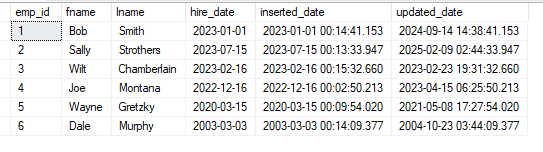
In the following example, I’ll set up an employee table with ID, First Name, Last Name, Hire Date, Inserted Date, and Updated Date. Inserted and Updated dates will be randomized to use in the GREATEST and LEAST functions.

/*SETUP EMPLOYEE TABLE*/
DROP TABLE IF EXISTS #tbl_employees;

CREATE TABLE #tbl_employees(
	emp_id INT IDENTITY(1,1),
	fname VARCHAR(50),
	lname VARCHAR(50),
	hire_date DATE,
	inserted_date DATETIME DEFAULT GETDATE(),
	updated_date DATETIME DEFAULT GETDATE()
	);

/*INSERT SOME TEST DATA*/
INSERT INTO #tbl_employees
(fname,lname,hire_date)
VALUES
('Bob','Smith','1/1/2023'),
('Sally','Strothers','7/15/2023'),
('Wilt','Chamberlain','2/16/2023'),
('Joe','Montana','12/16/2022'),
('Wayne','Gretzky','3/15/2020'),
('Dale','Murphy','3/3/2003');

/*GENERATE INSERTED/UPDATED DATES BASED ON HIRE DATE: SIMULATE XACTIONS*/
;WITH x AS(
SELECT
	emp_id,
	ins.date AS ins_date
	,DATEADD(MINUTE,RAND(e.emp_id)*RAND(DATEDIFF(s,'1/1/1970',ins.date))*(60*60*365),CONVERT(DATETIME,ins.date)) AS upd_date
FROM
	#tbl_employees AS e
CROSS APPLY(
	SELECT DATEADD(ms,RAND(e.emp_id)*RAND(DATEDIFF(s,'1/1/1970',e.hire_date))*(60*60*365),CONVERT(DATETIME,e.hire_date))
	) AS ins(date)
)
UPDATE e
SET
	inserted_date = x.ins_date,
	updated_date = x.upd_date
FROM
	#tbl_employees AS e
JOIN
	x
ON
	e.emp_id = x.emp_id;

/*SHOW EMPLOYEES*/
SELECT * FROM #tbl_employees;
Using GREATEST and LEAST

Suppose your HR Partner requested two lists of employees; one with employees whose records were added or updated prior to 1/1/2023; and the other being employees whose records were added or updated on or after 1/1/2023. Both could be solved in this simple example using an OR statement in the WHERE clause.

/*FIND EMPLOYEE RECORDS INSERTED OR UPDATED PRIOR TO 2023*/
SELECT * FROM #tbl_employees
WHERE
	inserted_date < '1/1/2023'
	OR
	updated_date < '1/1/2023';

/*FIND EMPLOYEE RECORDS INSERTED OR UPDATED AFTER TO 2023*/
SELECT * FROM #tbl_employees
WHERE
	inserted_date >= '1/1/2023'
	OR
	updated_date >= '1/1/2023';

The code above is straightforward and works as I would expect in this example, but I can use GREATEST and LEAST to get the same results as such:

/*FIND EMPLOYEE RECORDS INSERTED OR UPDATED PRIOR TO 2023*/
SELECT * FROM #tbl_employees WHERE LEAST(inserted_date,updated_date) < '1/1/2023';

/*FIND EMPLOYEE RECORDS INSERTED OR UPDATED AFTER TO 2023*/

SELECT * FROM #tbl_employees WHERE GREATEST(inserted_date,updated_date) >='1/1/2023';

Notice the results are the same in both sets of queries. Changing the queries didn’t gain anything in query plans either – both are identical.

Using GREATEST and LEAST with JOINS

Where the time saver with GREATEST and LEAST comes into play is with joined data. I’m going to add two additional tables to the example, a department table and a bridge table to map employees to departments. Additionally, I’ll randomize the inserted and updated dates on these tables.

DROP TABLE IF EXISTS #tbl_departments
CREATE TABLE #tbl_departments(
	dept_id INT IDENTITY(1,1),
	dept_name VARCHAR(100),
	inserted_date DATETIME DEFAULT GETDATE(),
	updated_date DATETIME DEFAULT GETDATE()
	)

INSERT INTO #tbl_departments
(
    dept_name   
)
VALUES
('HR'),('Accounting'),('Information Technology');

;WITH x AS(
SELECT
	dept_id,
	ins.date AS ins_date
	,DATEADD(ms,RAND(d.dept_id)*RAND(DATEDIFF(s,'1/1/1970',GETDATE()-RAND(1)*30))*(60*60*365),CONVERT(DATETIME,GETDATE()-30)) AS upd_date
FROM
	#tbl_departments AS d
CROSS APPLY(
	SELECT DATEADD(ms,RAND(d.dept_id)*RAND(DATEDIFF(s,'1/1/1970',GETDATE()-30))*(60*60*365),CONVERT(DATETIME,GETDATE()-30))
	) AS ins(date)
)
UPDATE d
SET
	inserted_date = x.ins_date,
	updated_date = x.upd_date
FROM
	#tbl_departments AS d
JOIN
	x
ON
	d.dept_id = x.dept_id;

CREATE TABLE #tbl_emp_dept(
	emp_dept_id INT IDENTITY(1,1),
	emp_id INT,
	dept_id INT,
	inserted_date DATETIME DEFAULT GETDATE (),
	updated_date DATETIME DEFAULT GETDATE()
	)

INSERT INTO #tbl_emp_dept
(emp_id,dept_id) 
VALUES
(1,1),(2,3),(3,2),(4,1),(5,1),(6,2)


;WITH x AS(
SELECT
	e.emp_id,
	ins.date AS ins_date
	,DATEADD(MINUTE,RAND(e.emp_id)*RAND(DATEDIFF(s,'1/1/1970',ins.date))*(60*60*365),CONVERT(DATETIME,ins.date)) AS upd_date
FROM
	#tbl_employees AS e
	JOIN #tbl_emp_dept AS d
	ON d.emp_id = e.emp_id
CROSS APPLY(
	SELECT DATEADD(ms,RAND(e.emp_id)*RAND(DATEDIFF(s,'1/1/1970',e.hire_date))*(60*60*365),CONVERT(DATETIME,e.hire_date))
	) AS ins(date)
)
UPDATE e
SET
	inserted_date = x.ins_date,
	updated_date = x.upd_date
FROM
	#tbl_emp_dept AS e
JOIN
	x
ON
	e.emp_id = x.emp_id;

/*JOIN NEW TABLES*/
SELECT
	e.emp_id,
	e.fname,
	e.lname,
	e.hire_date,
	d.dept_name
FROM
	#tbl_employees AS e
JOIN
	#tbl_emp_dept AS ed
ON
	e.emp_id = ed.emp_id
JOIN
	#tbl_departments AS d
ON
	d.dept_id = ed.dept_id

Now, to get the full picture of the employees, I can join these three tables together

/*JOIN NEW TABLES*/
SELECT
	e.emp_id,
	e.fname,
	e.lname,
	e.hire_date,
	d.dept_name
FROM
	#tbl_employees AS e
JOIN
	#tbl_emp_dept AS ed
ON
	e.emp_id = ed.emp_id
JOIN
	#tbl_departments AS d
ON
	d.dept_id = ed.dept_id

Another HR Request

Suppose HR asks for a list of employees, the first record insertion and the date of the last record change – meaning department change, name change, or department name change. Now the query to get that can be a bit more complicated because more tables are involved. I’d have to check for an employee record change, a bridge record change, and a department record change, OR I could use GREATEST and LEAST functions.

SELECT
	e.emp_id,
	e.fname,
	e.lname,
	e.hire_date,
	d.dept_name,
	LEAST(e.inserted_date,ed.inserted_date,d.inserted_date) AS earliest_record_insert,
	GREATEST(e.updated_date,ed.updated_date,d.updated_date) AS last_record_update
FROM
	#tbl_employees AS e
JOIN
	#tbl_emp_dept AS ed
ON
	e.emp_id = ed.emp_id
JOIN
	#tbl_departments AS d
ON
	d.dept_id = ed.dept_id

In the code above, I can quickly and easily select the LEAST inserted date and the GREATEST updated date from each of the tables in my join to satisfy the HR request. While the functions produce the expected results, what the function doesn’t return is from what table in the join the value was selected. If there is a use case need for this, then the GREATEST / LEAST function wouldn’t be the best choice.

Conclusion

With SQL Server 2022 addition of GREATEST and LEAST developers have a quick method for returning the greatest or least value from a list of values or columns. In my experience I’ve needed this functionality, but had to write custom code with UNPIVOT or other method to accomplish the same task. Read more about GREATEST and LEAST in the Microsoft documentation and happy SQL’ing!

Snowflake: Getting Started Stored Procedures

I’ve been primarily a SQL Server developer for the majority of my career, but along the way have needed to use a variety of database technologies including Oracle, Vertica, Teradata, PostgreSQL, and several others. A common behavior between them all is the ability to write some flavor of a stored procedure to encapsulate a block of reusable code efficiently. Snowflake is no different, but looking at the stored procedure documentation for Snowflake, stored procedures supported in Snowflake Scripting (SQL), and several other language options including Java and Python.

  1. Why Use Stored Procedures?
  2. Creating an Event Log
    1. Event Log Table Setup
    2. SQL Server Stored Procedure
    3. Snowflake Procedure Attempt 1
    4. Snowflake Procedure Attempt 2
  3. Speed Bumps
    1. Default Parameter Values
    2. Return Values
  4. Conclusion

Why Use Stored Procedures?

Creating a stored procedure allows for developers to reuse code that ranges from very simple to complex and encapsulates any business logic into a single method for processing. Over my career, I’ve seen stored procedures range from simple record insertion procedures to those that load multiple data tables with dynamic code using a variety of metadata tables. The possibilities are endless.

I was working on a Snowflake proof of concept recently and even with all the robust logging, query profiles, and other information provided by Snowflake “out-of-the-box”, I like having an event log table to write custom events that I care about. I track items such as when a procedure starts and ends, when each step in the procedure starts and ends, and record counts for intermediate steps and errors.

As I was looking to re-use some SQL Server code, I found that the task of migrating from SQL Server to Snowflake was not going to be a copy and paste exercise, but rather one where I needed to re-write the code to use Snowflake methods, but still get the desired output. The first hurdle I ran into was the syntax of the procedure itself, but a second and unexpected hurdle was that Snowflake does not support default parameter values for stored procedures. Many of my “standard” procedures have parameters with defaults defined to allow “shortcutting” the proc call in a script or from another procedure. I’ll walk through how I create a simple event log table process in both SQL Server and Snowflake to show the differences in the procedures.

Creating an Event Log

In the real-world use case I described above, my standard “logging” procedure in SQL Server has several inputs with default values set and those are only changed to non-default values when writing an error or some other “non-standard” informational event. In the next few steps, I’ll walk through how I set up the table and procedure in SQL Server and Snowflake, highlighting the differences.

Event Log Table Setup

To show the differences in behavior between SQL Server and Snowflake, I first need the event log table to build the stored procedure against. The table syntax between SQL Server and Snowflake is slightly different, so I will need two scripts to set up our sample tables. Note: this post assumes access to both a SQL Server and Snowflake. Snowflake offers a 30-day trial account if needed. These demos are based on SQL Server 2019 Enterprise and Snowflake Enterprise.

/*SQL SERVER*/
CREATE TABLE dbo.tbl_evt_log(
	evt_id INT IDENTITY(1,1)
	,evt_type VARCHAR(10)
	,evt_desc VARCHAR(1000)
	,evt_timestamp DATETIME DEFAULT GETDATE()
	,evt_username VARCHAR(50) DEFAULT SUSER_SNAME()
	)

/*SNOWFLAKE*/
CREATE TABLE tbl_evt_log(
	evt_id INT AUTOINCREMENT START WITH 1 INCREMENT BY 1
	,evt_type VARCHAR(10)
	,evt_desc VARCHAR(1000)
	,evt_timestamp DATETIME DEFAULT CURRENT_TIMESTAMP()
	,evt_username VARCHAR(50) DEFAULT CURRENT_USER()
	)
 
/*BOTH SQL SERVER AND SNOWFLAKE - INSERT SAMPLE ROWS*/
INSERT INTO tbl_evt_log(evt_type,evt_desc)
VALUES
('INFO','First Event Log Entry'),
('ERROR','First Error Entry')

SQL Server Stored Procedure

Next, I’ll set up a simple SQL Stored procedure for writing to the event log table. Since the target table has an identity column setup for the event ID, and defaults for timestamp and username, the stored procedure only needs to specify the event type and event description. In “normal” use, the log entries are informational, so by defaulting the event type to “INFO” as part of our procedure definition, it can save a step or two when calling the proc.

/*STORED PROCEDURE CREATION SCRIPT*/
CREATE PROCEDURE dbo.usp_evt_log
	(
	@evt_type VARCHAR(10) = 'INFO',
	@evt_desc VARCHAR(1000)
	)
AS
	INSERT INTO dbo.tbl_evt_log
	(evt_type,evt_desc)
	VALUES
	(@evt_type,@evt_desc)

/*SAMPLE CALLS*/
EXEC dbo.usp_evt_log @evt_desc = 'Event written from proc'
EXEC dbo.usp_evt_log @evt_type = 'ERROR',@evt_desc = 'Error written from proc'

/*EVENT TABLE*/
SELECT * FROM tbl_evt_log;

/*
evt_id      evt_type   evt_desc                 evt_timestamp           evt_username
----------- ---------- ------------------------------------------------ ------------
1           INFO       First Event Log Entry    2023-10-02 04:44:31.820 eheilman
2           ERROR      First Error Entry        2023-10-02 04:44:31.820 eheilman
3           INFO       Event written from proc  2023-10-02 04:54:26.317 eheilman
4           ERROR      Error written from proc  2023-10-02 04:54:26.320 eheilman
*/

In the code block above, notice in the sample calls to the procedure the @evt_type parameter has to be set only when a non-default value is needed. SQL Server allows for parameters to have default values; however, Snowflake does not which will be shown in the next step.

Snowflake Procedure Attempt 1

Naturally, I assumed when first starting to work with Snowflake that most of my SQL Server code and methods would naturally translate. I found a good chunk of it did, but procedure defaults did not! The syntax for Snowflake procedures is quite different from SQL Server in which a return value of some sort must be specified as well as referencing input parameters is quite different. My first attempt at the code to replicate my SQL Server procedure in Snowflake looked something like this (note parameters are referenced with a “:” in Snowflake procedures rather than “@” like SQL Server:

CREATE OR REPLACE PROCEDURE USP_EVT_LOG(EVT_TYPE VARCHAR(10) = 'INFO',EVT_DESC VARCHAR(1000))
AS
BEGIN
    INSERT INTO TBL_EVT_LOG(EVT_TYPE,EVT_DESC)
    VALUES(:EVT_TYPE,:EVT_DESC);
END;

Which produces this error:

Hmmm…perhaps I need to replace the “=” with “DEFAULT”. That works for Snowflake tables….

Okay…now this is getting frustrating. I will try taking out the default value entirely.

CREATE OR REPLACE PROCEDURE USP_EVT_LOG(EVT_TYPE VARCHAR(10),EVT_DESC VARCHAR(1000))
AS
BEGIN
    INSERT INTO TBL_EVT_LOG(EVT_TYPE,EVT_DESC)
    VALUES(:EVT_TYPE,:EVT_DESC);
END;

I’m missing something here, this is not going to be a copy/paste exercise to convert the SQL Stored Proc to a Snowflake procedure. Time to hit the documentation to figure out what I’m doing wrong.

Snowflake Procedure Attempt 2

After consulting the documentation, I found that a return type is needed in the definition and the procedure needs to return a value of that datatype. Additionally, I found there is no way to specify a default value for a parameter; but a parameter can be passed a NULL value. I’ll try that method for the evt_type parameter and use code in the proc to set the default. Not quite as simple as SQL Server, but manageable. I plan to return a BOOLEAN of TRUE if the procedure works and use COALESCE to get around the default parameter issue.

/*CREATE PROC*/

CREATE OR REPLACE PROCEDURE USP_EVT_LOG(EVT_TYPE VARCHAR(10),EVT_DESC VARCHAR(1000))
RETURNS BOOLEAN
AS
BEGIN
    INSERT INTO TBL_EVT_LOG(EVT_TYPE,EVT_DESC)
    VALUES(COALESCE(:EVT_TYPE,'INFO'),:EVT_DESC);
    RETURN TRUE;
END;

/*SAMPLE CALLS*/
CALL USP_EVT_LOG(NULL,'Event written from proc');
CALL USP_EVT_LOG('ERROR','Error written from proc');

Notice in the sample calls above, I have to pass a NULL to the first parameter if I want to use the default value of “INFO”. Not necessarily the end of the world, but just one more thing to remember that’s different from SQL Server. Also, notice that the parameters were passed positionally rather than by name. Like SQL Server, Snowflake procedures can be called with named inputs. Perhaps, I can just not use EVT_TYPE?

/*TEST 1 - NAME BOTH*/
CALL USP_EVT_LOG(
    EVT_TYPE => NULL,
    EVT_DESC => 'TEST'
);
/*WORKS!*/

/*TEST 2 - SKIP EVT_TYPE*/
CALL USP_EVT_LOG(  
    EVT_DESC => 'TEST'
);
/*ERROR!*/

This is interesting and it sounds like I can build a procedure of the same name with a different signature in Snowflake, which is something not supported in SQL Server. After consulting documentation and other resources, it does appear that Snowflake supports polymorphism or overloading, and procedures can be created with the same name with a different signature. I’ll have to check that out for a future post!

Speed Bumps

Stored procedures are fully supported by Snowflake; however, when migrating data processes from SQL Server to Snowflake, it won’t be a copy/paste exercise. Below are some of the “gotchas” I ran into in this exercise.

Default Parameter Values

SQL Server supports setting default parameter values as part of the procedure definition. By setting a default parameter, the developer can choose to exclude those parameters as part of the EXEC statement when calling a stored procedure simplifying code.

Snowflake requires all parameters of a procedure to be passed in the CALL statement and does not allow the setting of default values for input parameters.

Return Values

SQL Server handles return values somewhat by default and does not require them as part of the procedure definition. In the sample procedure, the code simply inserted data into a table and upon success returned the number of rows affected in the insert statement. A specific return value definition was not needed.

Snowflake requires procedures to have a defined return value. For the sample procedure, I chose to return Boolean but could have chosen something different. I also had to specifically include a return statement as part of the definition.

Conclusion

Stored procedures in any DBMS can be powerful tools for executing code blocks in a repeatable manner. Each system has its own set of limitations and features. SQL Server procedures are primarily written in T-SQL which is a really powerful version of SQL. Snowflake has a few more options supporting stored procs written in SQL with Snowflake Scripting, but also supports Python, Java, JavaScript, and Scala.

In this article, I covered a relatively simple use case to build a stored procedure in Snowflake and uncovered a couple of small speed bumps when converting SQL Server procs to Snowflake. In a future post, I cover how to smooth that bump, but also how doing so may create additional ones.

Snowflake: Upload to Stage With Snowpark

So far in this series we’ve uploaded files using the Snowsight UI, which has a limitation of 50mb currently. In my experience, not many data files are 50mb or less (even when compressed). For testing and demo purposes, this shouldn’t be an issue; however, in practice, data engineers need to stage files much larger than 50mb. External stages such as an S3 bucket have an advantage to use a 3rd party SFTP tool like WinSCP or FileZilla to connect via SFTP once properly configured. But what are the options for Snowflake internal stages? One option is SnowSQL and use the command line interface to connect and push files to the stage. Another more option I’ll discuss in this article is using Snowpark and Python to script the file load.

In this article I’ll cover basic Snowpark setup for Python, using a credentials file to connect to Snowflake and using Snowpark to upload a file to Snowflake.

  1. Snowpark Setup
  2. Python Script
    1. Folder Setup
    2. Credentials Setup
    3. Using Snowpark with Python
      1. Initial Setup
      2. Importing Credentials
      3. Build Snowflake Session
      4. Define Stage Name and File Name Variables
      5. Upload the File to Snowflake
      6. “Putting” It All Together
  3. Conclusion

Snowpark Setup

This demo code assumes that you have a Python development environment setup of your choosing. If you do not already have the Snowpark library installed, you’ll need to install it first. Snowflake documentation has a detailed walkthrough on setup. I prefer using VS Code for my development environment coming from .NET and SQL Server, but any Python editor will do. For my environment, I only needed to add the Snowpark library using pip.

python -m pip install snowflake-snowpark-python 

Python Script

As part of this demo, we’ll take some liberties and hard code some items such as the stage name we’re loading to as well as placing the file to upload in the same folder as our .py script to limit any issues with file paths, etc.

Folder Setup

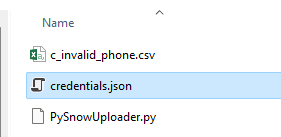
First let’s create a working folder on our file system called “PySnowUploader”, once the file is created, add three files: credentials.json, PySnowUploader.py both of which are empty for now, and the third is a text file of your choosing. In the sample below, you’ll see the invalid phone number file from our previous posts. We’ll upload that to our stage once the script is complete.

PySnowUploader file list

Credentials Setup

Before we can connect to Snowflake, we’ll need to setup our credentials.json file with our connection properties. The file content should look like the following, replace the parameters such as user and password with your credentials. I’ve set the database, schema, role and warehouse values below to the objects set up as part of prior posts. Once credentials.json is updated, save the file, we’ll then reference it as part of our connection string to Snowflake.

{
    "account":"YOUR ACCOUNT",
    "user":"USERNAME",
    "password":"PASSWORD",    
    "database":"ST_DEMO_DB",
    "schema":"ST_INTERNAL_STAGES",
    "role":"ST_DEMO_ROLE",
    "warehouse":"ST_DEMO_XS_WH"
}

Using Snowpark with Python

Initial Setup

Now that the credentials.json file is ready, we can begin working on PySnowUploader.py to set up our file upload. First thing needed is to import all the modules necessary for our script. We’ll need Snowpark, sys and json. Snowpark is needed for connection to Snowflake; sys and json are needed for reading and processing our credentials file.

import sys, json
import snowflake.snowpark as sp

Importing Credentials

Before connecting to Snowflake, we’ll need to import the credentials.json file into a Python dictionary in order to build the Snowflake session. This is where the json library is important in order to read the credentials files properly.

#READ CREDS FILE INTO A DICTIONARY; CLOSE .JSON WHEN DONE
with open("credentials.json") as jsonfile:
    creds = json.load(jsonfile)
    jsonfile.close()

Build Snowflake Session

Next we will create and open a Snowflake session with the Session.builder methods from Snowpark and our creds dictionary.

#CREATE SESSION VARIABLE
session = sp.Session.builder.configs(creds).create()

Define Stage Name and File Name Variables

In order to upload a file to a stage, we’ll need to define the stage name a file name to upload. We’ll explicitly set them here; however, other options include reading stage names from Snowflake directly and looping through directory to load multiple files. In the code block below, we set the stage name to our demo stage from an earlier post and the file name to the test file in our working directory.

#LOAD LOCAL VARS
sf_stage_name:str = "@ST_DEMO_STAGE"
upload_file:str = "c_invalid_phone.csv"

Upload the File to Snowflake

All the prerequisite objects needed for file upload have been defined in the .py file at this point. The next objective is to push the file to the stage using a PUT command. Doing so with Snowpark is like using an SFTP or SnowSQL PUT command. There are several options that can be set such as overwrite, which overwrites the target file in the case of a name collision, and auto_compress, which will compress the file using gzip as part of the file load. More details about each option can be found in the Snowflake Documentation.

To make sure to trap any errors, we’ll wrap the put command in a try/except statement. Additionally, for this example, we will not overwrite the target and not compress the file.

#TRY TO PUT FILE
try:
    #PUT THE FILE
    put_results = session.file.put(
        local_file_name=upload_file,
        stage_location=sf_stage_name,
        overwrite=False,
        auto_compress=False)
    #PRINT THE RESULTS
    for r in put_results:
        str_output = ("File {src}: {stat}").format(src=r.source,stat=r.status)
        print(str_output)        
except Exception as e:
    #PRINT THE ERROR
    print(e)

“Putting” It All Together

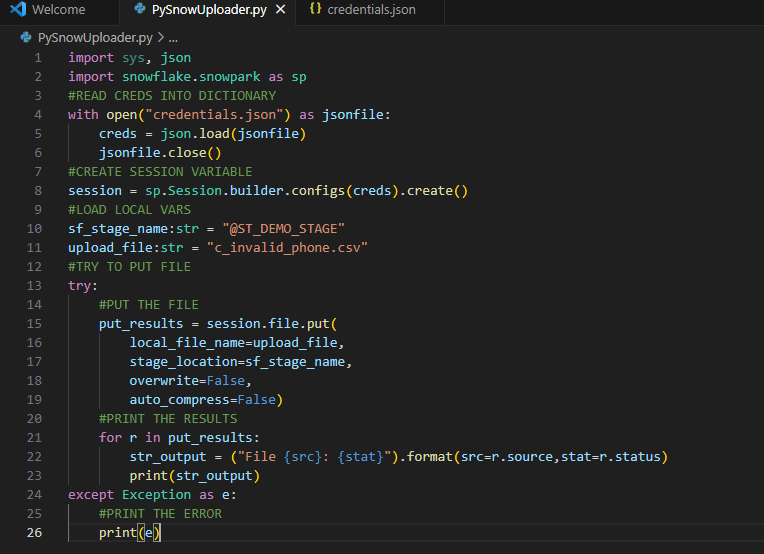
We’ve assembled the components for uploading a file to a Snowflake internal stage using Snowpark and Python in less than 30 lines of code – including comments! Removing the comments brings the total line count to roughly 20. The complete PySnowUploader.py file should look like the following:

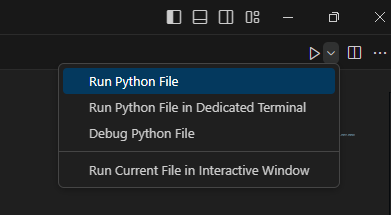
All that’s left is to run the code and see the output. I’m using VS Code, so I can either press F5 to run with debug, or choose “run Python file” in the upper right corner of the IDE. You can also run the file from the command line, it’s really dealer’s choice on how you want to run the code.

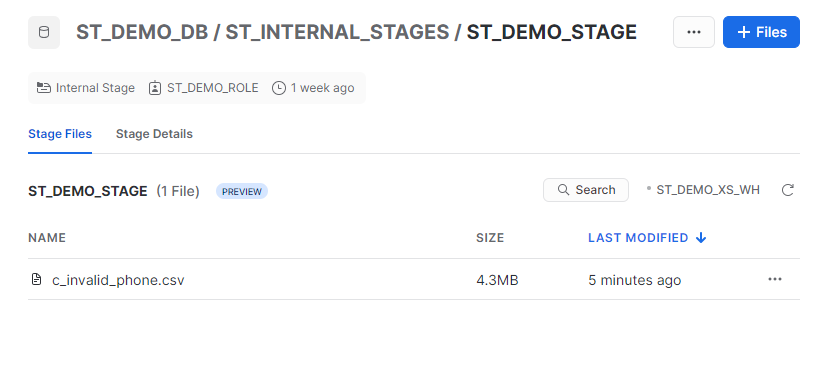
Upon successful execution, the file name and the “UPLOADED” status will be printed to the console, and we can verify through our Snowsight UI.

File c_invalid_phone.csv: UPLOADED

Conclusion

Using the power of Snowpark and Python, we created a simple file loader to push a file from our local machine to our Snowflake internal stage location in under 30 lines of code. With a few minor enhancements, this code could easily upload multiple files from a directory, list files already in the stage or add any number of error checking options. Perhaps this could be the starting framework for a Streamlit app? I think so, but that’s for another post.

The source code and configuration file used in this walkthrough is available on my GitHub repository.

Happy coding!