Streamline Snowflake Queries: Filter Columns with ILIKE Patterns

As a data person (engineer, analyst, scientist) we frequently run into that monolith of a data table in our databases. Attempting to figure out what columns we need can be challenging at times, especially if a lot of the columns have a similar naming convention. Snowflake has a way to help reduce some of this frustration in your SELECT statements with the ILIKE keyword. The documentation does a thorough job of explaining how ILIKE works; however, in a nutshell, ILIKE is a case-insensitive search method for columns that match a given pattern.

Overview

To illustrate how ILIKE works, I’ll run through a quick SQL statement querying some Global Weather data from Snowflake Marketplace. I won’t cover adding this dataset to your account in this article; however, Snowflake makes this extremely easy and only takes a few minutes. The weather history data contains many data points for MIN, MAX, and AVG values for weather readings. For this example, I only want to select columns with “AVG” in the column name.

Query Example

In other RDBMS systems without the ILIKE operator there’s a couple of options to get the column names needed for a query. You can run a SELECT * on the table and limit the rows or query the INFORMATION_SCHEMA or use another method to get the metadata on the table. ILIKE eliminates that step and gets you rolling quickly. Let’s look at the sample query I used on the Weather Data.

SELECT
    POSTAL_CODE,
    COUNTRY,
    DATE_VALID_STD,
    * ILIKE '%AVG%'    
FROM
   HISTORY_DAY AS F
WHERE
    COUNTRY = 'US'
    AND
    POSTAL_CODE = '28204' /*CHARLOTTE, NC*/
    AND
    DATE_VALID_STD::DATE >= '2024-10-01'::DATE /*WEATHER DATA SINCE ONLY OCTOBER 1st*/
ORDER BY
    DATE_VALID_STD DESC /*SORT IN DESCENDING ORDER*/
    ;

Notice that the query above looks like any regular select statement, except the ILIKE operator. The FROM, WHERE, and ORDER BY clauses all look “normal” for this statement – filtering data for the US in the Charlotte, NC area (where I live) and readings on or after October 1, 2024.

ILIKE Query Results

Wrapping Up

In the code sample above, I showed how to use the ILIKE operator to simplify querying wide tables in your Snowflake data warehouse to return only columns that match your search pattern. You’re not limited to a single ILIKE per query either – if you have multiple patterns to search for, you add additional ILIKE statements as needed.

Why does this matter? For cloud-based tools like Snowflake, running SELECT * on tables with many columns and rows can be a costly operation. Using ILIKE to reduce the number of columns returned ensuring your JOINS and WHERE clauses are in order will help reduce your query costs.

Follow me on LinkedIn and Medium for more content on Data Management and demos including Snowflake, Streamlit, and SQL Server.

Streamlit in Snowflake: Building a Dynamic Pivot Query App with Selectable Criteria

In a previous article, I described how to use Snowflake’s SQL to set up a dynamic pivot query without using any dynamic SQL. In this post, we’ll take that a step further and build a quick Streamlit in Snowflake app that will allow configuration of parts of the query and display the results in a data frame.

Getting Started

First, if not already done, create a new database that will hold your app and a view to simplifying the build process. In my case, I created ST_DEMO_DB and will use the PUBLIC schema.

Convert CTE to a View

In the prior demo, I used a Common Table Expression (CTE) as the base of the pivot query. In the Streamlit app, I’d like to use some of the data from that base data to build a select box to choose the region to display. To simplify my queries, I’ll first convert the CTE to a view.

CREATE OR REPLACE VIEW ST_DEMO_DB.PUBLIC.VW_NATION_SALES
    (C_ACCTBAL, C_MKTSEGMENT, N_NAME, R_NAME)
AS
SELECT
    C_ACCTBAL,
    C_MKTSEGMENT,
    N.N_NAME,
    R.R_NAME
FROM
    SNOWFLAKE_SAMPLE_DATA.TPCH_SF1.CUSTOMER AS C
    JOIN SNOWFLAKE_SAMPLE_DATA.TPCH_SF1.NATION AS N ON C.C_NATIONKEY = N.N_NATIONKEY
    JOIN SNOWFLAKE_SAMPLE_DATA.TPCH_SF1.REGION AS R ON N.N_REGIONKEY = R.R_REGIONKEY;

Creating the App

Now that the view is in place, I’ll create a new Streamlit app. Normally, I create Streamlit apps manually through SQL; however, part of the purpose of this demo is to show how all of this can be done directly in Snowsight, so I’ll do so by navigating to Projects -> Streamlit and clicking “+ Streamlit App”. Give your app a meaningful name such as “Dynamic Pivot” and choose the appropriate database, schema, and virtual warehouse. The app will be created with demo code, we’ll remove most of it to add our own.

Create a new Streamlit App

Adding Pivot Criteria

First, we’ll create three (3) select boxes that will be the inputs to our dynamic pivot query. I’ll also use Streamlit’s column widget to help space them nicely on the page. Select boxes will be created for:

  1. Region
  2. Aggregate
  3. Pivot Column

The region select box values will come from the view, and the aggregate and pivot columns values will be entered as static values. Each chosen select box value will be stored in variables used in the next step.

#Set Columns to hold three select boxes
colRegion,colAgg,colPivot = st.columns(3)
#Load Region Select Box
with colRegion:
    # Build selection for dynamic filter
    sql_region = """
    SELECT R_NAME FROM
    ST_DEMO_DB.PUBLIC.VW_NATION_SALES
    GROUP BY R_NAME
    ORDER BY R_NAME ASC
    """
    df_region = session.sql(sql_region)
    df_region.sort("R_NAME")
    region = st.selectbox(label="Choose a region",options = df_region)
#Load aggregate function selection box
with colAgg:
    agg = st.selectbox(label="Choose an aggregate",options=["AVG","COUNT","MAX","MIN","SUM"])

with colPivot:
    pivot = st.selectbox(label="Choose pivot column",options=["N_NAME","C_MKTSEGMENT"])

Select Boxes for Pivot Criteria

Dynamic Pivot Data Frame

Next, we’ll add our dynamic pivot query. First, we’ll grab the query from the last post and replace the CTE with our view earlier. Next, we’ll add placeholders for each of the values set in the select boxes. With the SQL command ready, we’ll execute and store the output into a Pandas data frame and run a “rename” command to replace the single quotes in our column names resulting from the PIVOT command in Snowflake SQL. Lastly, display the data using a Streamlit data frame, hiding the index column for readability.

# Use the region to pivot the country names
sql_pivot = f"""
SELECT
    *
FROM
    (SELECT N_NAME,C_ACCTBAL,C_MKTSEGMENT
    FROM ST_DEMO_DB.PUBLIC.VW_NATION_SALES
    WHERE R_NAME = '{region}') AS N
PIVOT(
    {agg}(C_ACCTBAL) FOR {pivot} IN (SELECT {pivot}
                                    FROM ST_DEMO_DB.PUBLIC.VW_NATION_SALES
                                    WHERE R_NAME = '{region}'
                                    GROUP BY {pivot})
)
ORDER BY 1
"""

df_pivot = session.sql(sql_pivot).to_pandas()
#Convert to pandas to replace single quotes in column names
#df_pivot = df_pivot.to_pandas()
df_pivot.columns = [c.replace("'","") for c in list(df_pivot.columns)]
st.dataframe(data=df_pivot,use_container_width=True,hide_index=True)
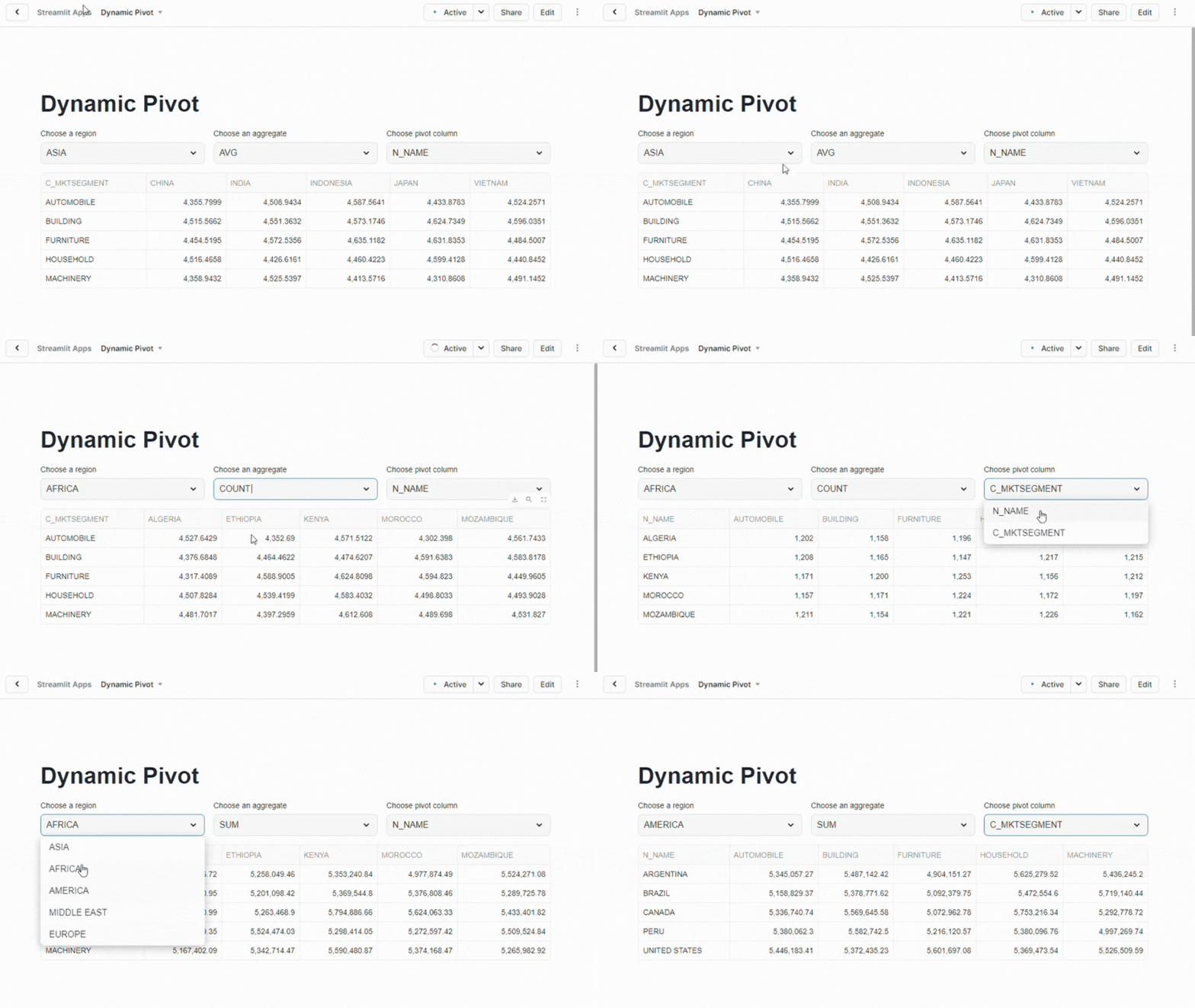
App in Action

Wrapping Up

Now when you run the app in Snowflake you can change the values in the select boxes and see how the data changes almost instantly running different versions of the query. One more little fun piece to add is outputting the SQL command below the data frame so you can see what’s running “under the covers”. You can add that with Streamlit’s code widget.

st.code(sql_pivot)
Output with SQL

Conclusion

In this article, we expanded on creating a dynamic pivot in Snowflake by building a Streamlit app to allow easy configuration of query parameters and immediately display the results in a data frame. Key steps were converting the base CTE to a view, creating select boxes for dynamic input, and executing a modified query in Streamlit. The finished app enables quick query adjustments and displays the data neatly.

Follow me on LinkedIn and Medium for more content on Data Management and demos including Snowflake, Streamlit, and SQL Server.

Dynamic Pivot Queries in Snowflake: A Practical Example and Benefits

In this post, we will dive into a Snowflake query example that showcases the power of dynamic pivoting, a technique that can simplify and enhance data manipulation and reporting. We’ll walk through the query step-by-step, explore how the dynamic pivot works, and discuss its advantages. This example uses some of the sample data provided by Snowflake.

The Query: Breaking It Down

SET REGION_NAME = 'EUROPE';
WITH NATION_SALES AS(
SELECT C_ACCTBAL, C_MKTSEGMENT, N.N_NAME, R.R_NAME 
FROM CUSTOMER AS C
JOIN NATION AS N
ON C.C_NATIONKEY = N.N_NATIONKEY
JOIN REGION AS R
ON N.N_REGIONKEY = R.R_REGIONKEY
)
SELECT
    *
FROM
    (SELECT N_NAME, C_ACCTBAL, C_MKTSEGMENT 
     FROM NATION_SALES
     WHERE R_NAME = $REGION_NAME) AS N
PIVOT(
    SUM(C_ACCTBAL) 
    FOR N_NAME IN (SELECT DISTINCT N_NAME FROM NATION_SALES WHERE R_NAME = $REGION_NAME)
)
ORDER BY 1;

Step 1: Setting the Region

The first line uses a SET command to assign a value to a variable REGION_NAME. In this case, we are setting the region to ‘EUROPE’. This variable is later used to filter the results by the region we’re interested in.

SET REGION_NAME = 'EUROPE';

Step 2: Defining the Base Data with a CTE

The WITH clause defines a Common Table Expression (CTE) called NATION_SALES. In this step, the query joins the CUSTOMER, NATION, and REGION tables, selecting three main columns: the account balance (C_ACCTBAL), market segment (C_MKTSEGMENT), and the nation’s name (N_NAME), along with the region name (R_NAME).

WITH NATION_SALES AS (
    SELECT C_ACCTBAL, C_MKTSEGMENT, N.N_NAME, R.R_NAME 
    FROM CUSTOMER AS C
    JOIN NATION AS N
    ON C.C_NATIONKEY = N.N_NATIONKEY
    JOIN REGION AS R
    ON N.N_REGIONKEY = R.R_REGIONKEY
)

This CTE sets up the data we need to work with and ensures that we have all necessary fields filtered by region.

Step 3: Building the Dynamic Pivot

Now comes the key part of the query, the PIVOT.

SELECT
    *
FROM
    (SELECT N_NAME, C_ACCTBAL, C_MKTSEGMENT 
     FROM NATION_SALES
     WHERE R_NAME = $REGION_NAME) AS N
PIVOT(
    SUM(C_ACCTBAL) 
    FOR N_NAME IN (SELECT DISTINCT N_NAME FROM NATION_SALES WHERE R_NAME = $REGION_NAME)
)
ORDER BY 1;

Here, the PIVOT clause transforms rows into columns based on the distinct nation names (N_NAME). The query dynamically sums the C_ACCTBAL (account balance) for each distinct nation name found in the NATION_SALES dataset filtered by the chosen region.

The magic happens with the IN clause of the pivot, where we dynamically generate the list of nation names by selecting distinct values from the NATION_SALES table. This is what makes it a “dynamic” pivot – the column headers (nation names) are generated on the fly based on the actual data in the table, rather than being hard-coded.

Why Use a Dynamic Pivot?

  1. Adaptability: You don’t need to know the exact set of column headers (nation names) beforehand. This is particularly useful when working with data that changes over time, such as adding or removing countries from a dataset.
  2. Scalability: As new nations or categories are added to your data, the pivot automatically adjusts. You don’t need to rewrite your query to handle new columns.
  3. Simplified Reporting: Dynamic pivots make it easier to create flexible and scalable reports. They eliminate the need for repetitive manual updates, allowing for more efficient data exploration.
  4. Efficiency: Dynamic pivots can be more efficient in cases where manually specifying a list of columns would require multiple adjustments over time. Instead, the system adapts to data changes seamlessly.

Example Output

When we run the query with REGION_NAME = 'EUROPE', the results look like this:

In this case, the C_MKTSEGMENT remains a row header, and the account balances (C_ACCTBAL) for each nation are pivoted into columns. Each column corresponds to the account balance sums for a particular nation within the region specified.

Conclusion

Dynamic pivoting in Snowflake is a powerful technique for transforming data into a more useful and readable format. By generating pivot columns dynamically based on the data itself, you can handle changing datasets more flexibly and efficiently. This eliminates manual intervention and allows your queries to stay robust and adaptable, especially in environments where the underlying data may evolve over time.

Imagine pairing a dynamic pivot query with a very simple Streamlit app with its powerful data frame display. The possibilities of what insights you can make quickly are endless. In a future post, I’ll do just that – create a simple Streamlit in Snowflake app that dynamically displays the results of a dynamic query.

Follow me on LinkedIn and Medium for more content on Data Management and demos including Snowflake, Streamlit, and SQL Server.