Streamlit in Snowflake is an awesome tool for rapidly creating and deploying data applications to the data cloud. What if you wanted to give your app a little character, or branding with an image? Streamlit has you covered! In this article, I’ll cover a couple of ways to add images to your Streamlit in Snowflake app.
External URL
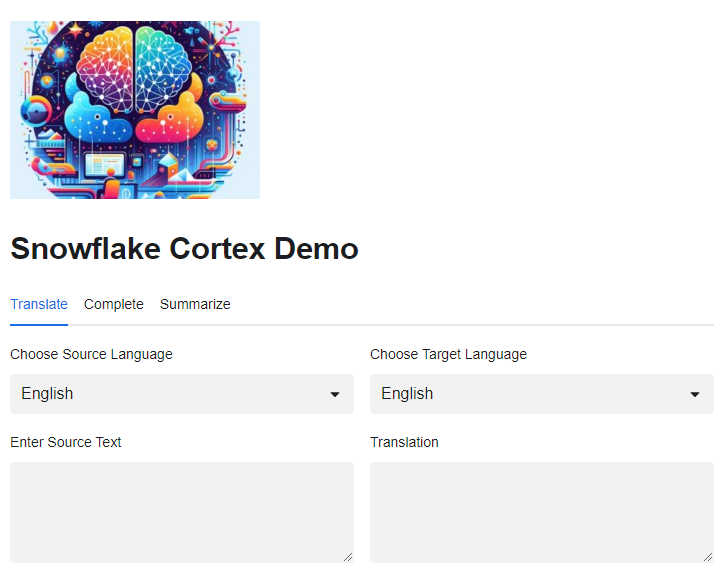
In a previous article, I created a demo app showcasing the new Cortex AI features of Snowflake. The app itself was relatively plain – just a header, some tabs, and the input boxes. I want to spice it up a bit and add the Snowflake logo to the app. Using the link to a sample logo from the Snowflake branding guidelines, I can add the Snowflake logo to the header with one line of code.
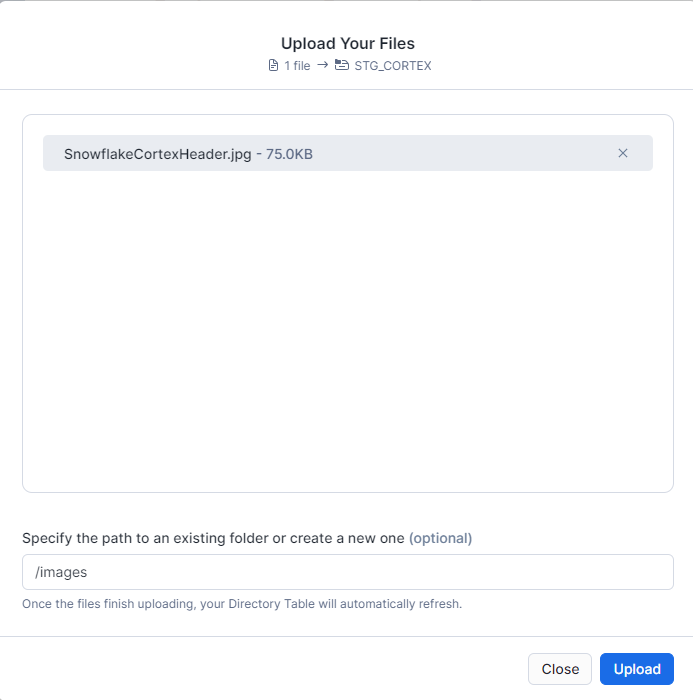
My app resides on an internal stage in Snowflake and perhaps the image I want to add to my app isn’t in the public domain. I can easily upload it to the stage and still add it to my app in one line of code. For this example, I’ll upload an image to a new folder on my STG_CORTEX stage called “images”. Once the image is uploaded, I can reference its path in my app.
Using Steamlit in Snowflake to quickly build and prototype apps is one of the many benefits of the Snowflake Data Cloud ecosystem. In this demo, I showed how easy it is to add some pizazz to your app by including images from a link or from the internal stage where the app is stored.
During a recent leader training session, we paired off with a colleague to work through an exercise on effectively coaching a team member. During our discussion, we both realized that one of our biggest personal challenges, which is a challenge for our teams, was knowing when to “dig in” to the details versus trusting our team to handle it. The more we talked, I also realized that on some level, I had a fear of losing the “skills that brought me here.”
Perhaps you’re a leader struggling with delegation, or fearful of losing the skills that you spent years perfecting. In this article, I’ll discuss three real approaches I’ve implemented following those discussions. Some of these are still in the probation period and still being evaluated, but I’ll share them anyway.
Reframing My Role
In previous roles, I was hands-on all the time. I was writing code and designing solutions. It was fun. I loved it – I still do. Being that hands-on and “in the weeds” isn’t my role any longer.
My role is to cast the vision of our organization to the team and keep it fresh in their minds. My role is to coach and teach the team how to overcome challenges. My role is to knock down roadblocks preventing the team from being successful.
If needed, I can still roll up my sleeves and code. But those times must be few and far between, reserved only for emergencies. I’m not helping the team’s overall success if I’m being a bottleneck to productivity by trying to be in the details of everything. Jumping into the weeds too frequently also sends a message that I don’t trust the team to execute a task or project.
Listening to the Team
There’s a saying: “You have two ears and one mouth, you should listen twice as much as you talk.” Sometimes as leaders, we like to hear ourselves talk – it’s about what we want to say or what our agenda is. While that may be true in some instances sometimes. It shouldn’t be the case all the time.
One change I’ve made in my 1:1 meetings with my team has been to let them set the agenda. That allows my team to see they are a priority and they are important. That is their time with me to discuss whatever is on their minds – with no boundaries other than those they impose. If they want to brag about the team, their kids, or themselves – great! I want to hear about it.
By allowing them to set the agenda, it also conveys to them that I trust them to ensure I’m kept aware of important items on projects, timeline impacts, or areas where they need me to help.
If there were topics Ineeded or wanted to discuss with them that didn’t come up from their agenda or we ran out of time – I’ll simply schedule another meeting to focus on that topic. If it was anything urgent, it shouldn’t have waited until the 1:1 anyway. Urgent matters should be addressed immediately.
Focused “Tinker Time”
I’ve described myself as a “tinkerer” before. I come by it honestly – my dad was one. He was always tinkering with something, it’s just how his mind worked. I’ve inherited a lot of those same traits. Tinkering is how I keep my skills sharp and learn new ones.
I have set aside some dedicated time in my week for tinkering. It may be part of my lunch break or an hour in the afternoon when it’s not full of meetings or even a few minutes before or after regular work hours. It’s a focused time when I can code, read, or test some hair-brained ideas. It helps me scratch that coding itch while not taking my focus away from leading my team well.
Conclusion
If a perfect way to be a leader exists for every situation, team, and industry, there wouldn’t be hundreds of books and articles written on leadership. I’m finding that a lot of leadership is experimentation and refining my hypothesis of how to do so effectively regularly. Who knows, you may come back in six months, and all these ideas may be lying in a pile on the side of the road, or maybe they’re slightly modified to test again.
Getting started with AI can be daunting. I’m just getting started on my AI “tinkering” and finding a good jumping-off point has been difficult. Snowflake has helped make getting started with AI easier through the release of Snowflake Cortex into Public Preview. Cortex is a great starting point for me as it is woven into the Snowflake ecosystem I’m already familiar with, so the learning curve is more palatable.
What is Snowflake Cortex?
Snowflake Cortex is a managed service that adds AI and ML functions to the Snowflake Platform. With SQL and Python functions, developers can access large language models (LLM) for translation, summarization, and even querying large blocks of text. The ML SQL functions assist with the predictive analysis of your data.
If your Snowflake account is in a supported region, your account admin must grant the proper Cortex database role to your appropriate role. In the code sample below, I applied the role to my ST_DEMO_ROLE so that my Streamlit app can access the functions. More information is available in the Cortex documentation.
/*GRANT STREAMLIT APP ROLE RIGHT TO CORTEX -- MUST BE DONE BY ACCOUNTADMIN*/
USE ROLE ACCOUNTADMIN;
USE DATABASE SNOWFLAKE;
GRANT DATABASE ROLE CORTEX_USER to ROLE ST_DEMO_ROLE;
Translate
Snowflake Cortex can easily translate text data from one language to another in just a few keystrokes. The translate function supports eleven (11) different languages currently. Let’s take a peek at how we can quickly translate “Hello! How are you?” from English to German.
/*CHANGE ROLE/DB/WAREHOUSE AND TEST*/
USE ROLE ST_DEMO_ROLE;
USE WAREHOUSE STREAMLIT_XS_WH;
USE DATABASE STREAMLIT_DB;
USE SCHEMA STREAMLIT_DATA;

/*TRANSLATE "HELLO! HOW ARE YOU?" TO GERMAN*/
SET ENGLISH = 'Hello! How are you?';
SELECT $ENGLISH as ENGLISH,
    SNOWFLAKE.CORTEX.TRANSLATE($ENGLISH,'en','de') AS GERMAN;
“Hello! How are you?” Translated into German
Complete
Using the complete function, you can use an LLM to generate a response to a given prompt. Perhaps you want to know why the sky is blue or extract some insight from the text. The complete function can do just that by using a prompt that can contain multiple requests and return the data in a specified format if you like (i.e. JSON) for further analysis.
Let’s see how we can use the complete function to answer the question “Why is the sky blue?”, but with a twist – how would I explain this to my 8-year-old niece or nephew?
/*WHY IS THE SKY BLUE FOR AN 8 YR OLD*/
SELECT SNOWFLAKE.CORTEX.COMPLETE(
    'llama2-70b-chat'
    ,'Why is the sky blue? Return only one answer suitable for an 8-year old child.'
    );
LLaMA response to “Why is the sky blue, suitable for an 8 year old child.”
Summarize
TL;DR – ever gotten an email, landed on a website with a wall of text, or even gotten a dataset with call or chat transcripts? The summarize function in Snowflake Cortex accepts an input of a large (or small) block of text and provides a summary.
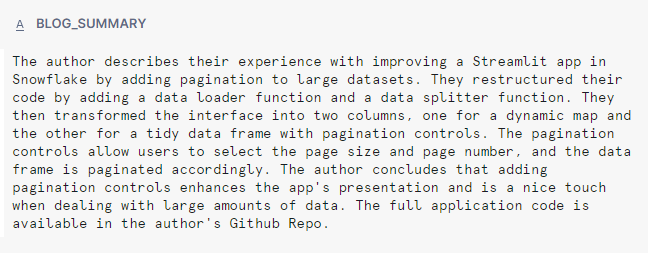
To show how this works, I copied the full content of a recent blog article into a table in Snowflake and then used the summary function to summarize it.
Summary of Recent Blog Post
Streamlit in Snowflake App
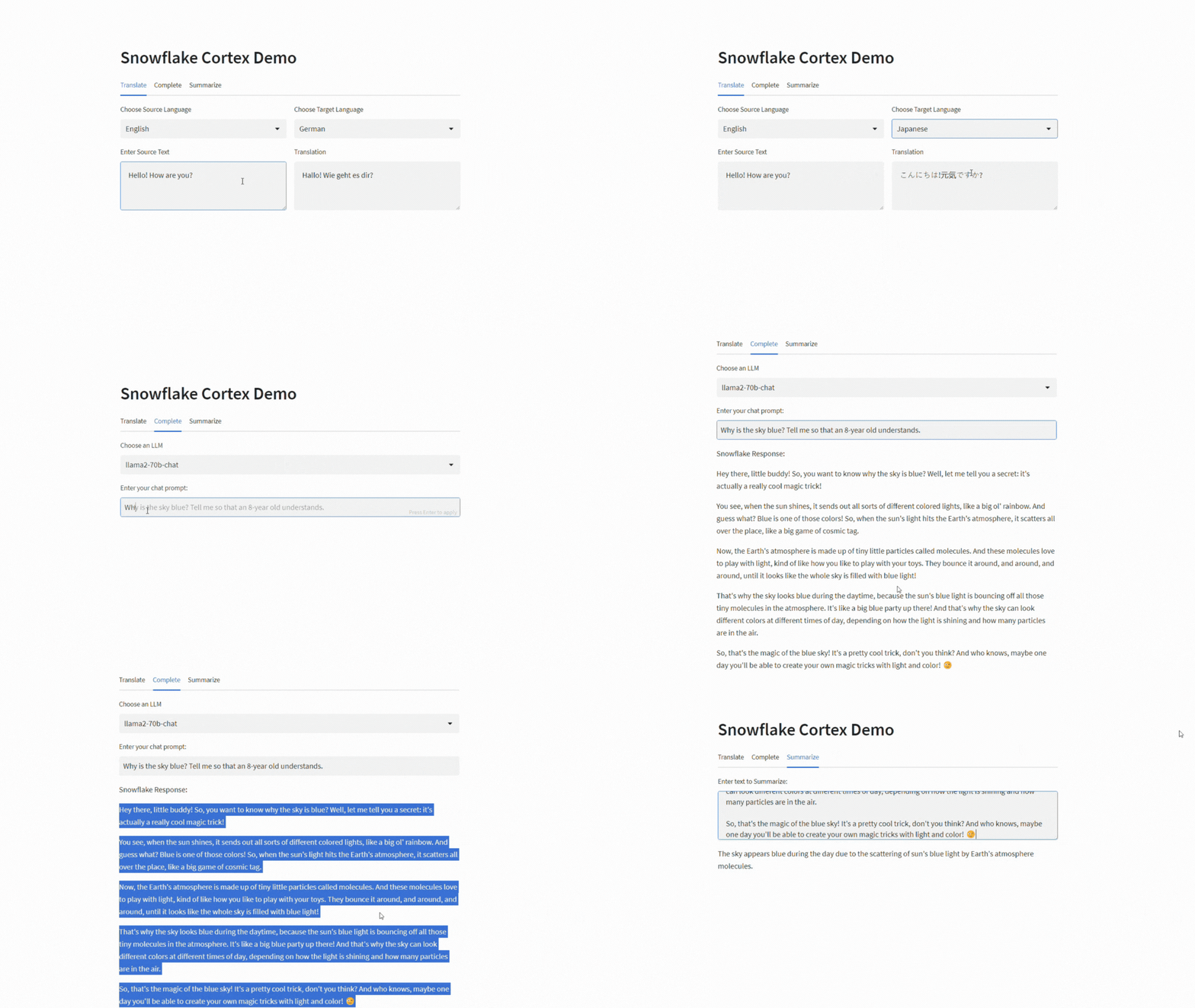
Now, let’s put Cortex to work in a simple Streamlit in Snowflake app that can translate text, provides a space to prompt an LLM and can summarize a block of text. The full sample code, available on my Github repository, will also work as a stand-alone Streamlit app by entering your account details in the creds dictionary section. I’ve cut down the code sample below to improve readability.
#CREATE LANGUAGE DICT
lang_code = {"English":"en","French":"fr","German":"de","Italian":"it",
             "Japanese":"ja","Korean":"ko","Polish":"pl",
             "Portuguese":"pt","Russian":"ru","Spanish":"es",
             "Swedish":"sv"
            }

#CREATE LLM OPTIONS
llm_models = ["llama2-70b-chat","mistral-large","mixtral-8x7b",
              "mistral-7b","gemma-7b"]

#CORTEX TRANSLATE FUNCTION
def cortex_translate(src_text,src_lang,tgt_lang):
    src_text = src_text.replace("'","\\'")
    src_lang_cd = lang_code[src_lang]
    tgt_lang_cd = lang_code[tgt_lang]
    trans_sql = f"""
    SELECT SNOWFLAKE.CORTEX.TRANSLATE('{src_text}','{src_lang_cd}','{tgt_lang_cd}')
    """
    tgt_text = session.sql(trans_sql).collect()[0][0]

    return tgt_text
#CORTEX COMPLETE FUNCTION
def cortex_complete(model_name,prompt):
    prompt = prompt.replace("'","\\'")
    comp_sql = f"""
    SELECT SNOWFLAKE.CORTEX.COMPLETE('{model_name}','{prompt}')
    """
    comp_text = session.sql(comp_sql).collect()[0][0]

    return comp_text
#CORTEXT SUMMARIZE FUNCTION
def cortex_summarize(text):
    text = text.replace("'","\\'")
    summ_sql = f"""
    SELECT SNOWFLAKE.CORTEX.SUMMARIZE('{text}') LIMIT 1
    """
    summ_txt = session.sql(summ_sql).collect()[0][0]

    return summ_txt

#START APP
st.header("Snowflake Cortex Demo")

#SET TABS
tbTranslate,tbComplete,tbSummarize = st.tabs(["Translate","Complete","Summarize"])
#BUILD UI
with tbTranslate:
    colLang = st.columns(2)
    with colLang[0]:
        src_lang = st.selectbox(label="Choose Source Language",options=dict(sorted(lang_code.items())))
    with colLang[1]:
        tgt_lang = st.selectbox(label="Choose Target Language",options=dict(sorted(lang_code.items())))
    colTrans = st.columns(2)
    with colTrans[0]:
        src_text = st.text_area(label="Enter Source Text")
    with colTrans[1]:
        tgt_text = cortex_translate(src_text,src_lang,tgt_lang)
        st.text_area(label="Translation",value=tgt_text)

#COMPLETE
with tbComplete:
    llm_name = st.selectbox(label="Choose an LLM",options=llm_models)
    comp_question = st.text_input(label="Enter your chat prompt:")
    if comp_question:
        comp_answer = cortex_complete(llm_name,comp_question)
        st.write("Snowflake Response:")
        st.write(comp_answer)
#SUMMARIZE
with tbSummarize:
    txt_to_summ = st.text_area(label="Enter text to Summarize:")
    if txt_to_summ:
        st.write(cortex_summarize(txt_to_summ))
Streamlit App in Action
Conclusion
Snowflake Cortex shortens the learning curve and management headache of getting started with AI and machine learning for developers. In just a few keystrokes we were able to translate text from one language to another, answer the tough questions for our nieces and nephews, and smash it all together into an app – all while never leaving the safety and security of the Snowflake ecosystem.
The title of this article came from the Streamlit app built by this article. I copied the text (minus code samples) into the app to generate a summary, and then used the summary to prompt LLaMA2 to generate a title. I think it did a pretty good job!
The setup SQL and Streamlit source code is available in my Github Repository along with all my other demos and walkthroughs.






 Eric Heilman