
In previous articles, I showed how to seamlessly connect Domo to Snowflake using Cloud Amplifier for both read and write access. In those examples, I set up a “service” account that still had a username and password.
Since I wrote that article, Snowflake has enhanced user accounts to provide a true service account option. This account does not have a password nor can it interactively login using Snowsight. Additionally, a network policy can be assigned to this user to limit where this user can connect. Domo provides the list of IPs it uses, so we’ll create a network policy to prevent our Domo Service account from connecting apart from Domo.
Creating the Network Policy
First, I’ll create a new network policy on my Snowflake account to limit traffic to just the Domo IPs. The full list of Domo’s IPs is in the Domo documentation.
USE ROLE ACCOUNTADMIN;
CREATE OR REPLACE NETWORK POLICY DOMO_INBOUND_NETWORK_POLICY
    ALLOWED_IP_LIST = (
         '3.214.145.64/27'
        ,'54.208.87.122/32'
        ,'54.208.94.194/32'
        ,'54.208.95.167/32'
        ,'54.208.95.237/32'
        ,'34.198.214.100'
        ,'34.202.52.248'
        ,'13.92.125.193/32'
        ,'40.76.8.174/32'
        ,'35.82.136.240/28'
        ,'52.62.103.83/32'
        ,'15.222.16.24/29'
        ,'52.18.90.222/32'
        ,'54.168.46.79/32'
    )
COMMENT = 'Network policy for Domo Service Accounts'
Convert Users to Service Accounts
Since my users already exist, I can easily convert them to service type accounts with an ALTER USER command. I’ll also need to assign an RSA key to the user. This article assumes that you already have an RSA key pair, or can generate one. Snowflake also has good documentation on how to create an RSA Key Pair.
USE ROLE ACCOUNTADMIN;
ALTER USER DOMO_READER_SVC_01
    SET TYPE=SERVICE;
ALTER USER DOMO_READER_SVC_01
    SET NETWORK_POLICY = DOMO_INBOUND_NETWORK_POLICY;
ALTER USER DOMO_READER_SVC_01
    SET RSA_PUBLIC_KEY = 'ENTER PUBLIC KEY HERE';

USE ROLE ACCOUNTADMIN;
ALTER USER DOMO_WRITER_SVC_01
    SET TYPE=SERVICE;
ALTER USER DOMO_WRITER_SVC_01
    SET NETWORK_POLICY = DOMO_INBOUND_NETWORK_POLICY;
ALTER USER DOMO_WRITER_SVC_01
    SET RSA_PUBLIC_KEY = 'ENTER PUBLIC KEY HERE';
Reconnect Cloud Amplifier
Now that I have updated my users, I can go back into my Domo Cloud Amplifier setup and convert the connection from using username and password to using the Key Pair. Notice once I enter the integration screen, Domo recommends using a key pair.
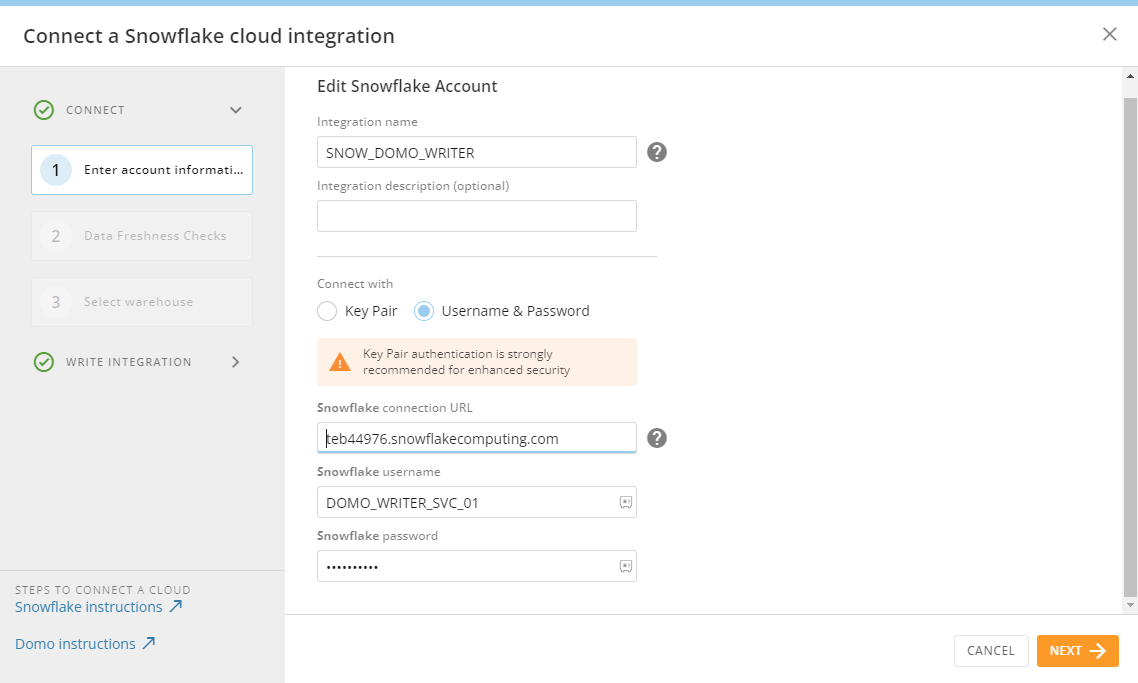
Choose the key pair option (username stays the same). Upload the .p8 private key file and enter the password for your encrypted key. Once complete, click NEXT.

Once the authentication is changed and the account is connected, the data freshness check options appear.
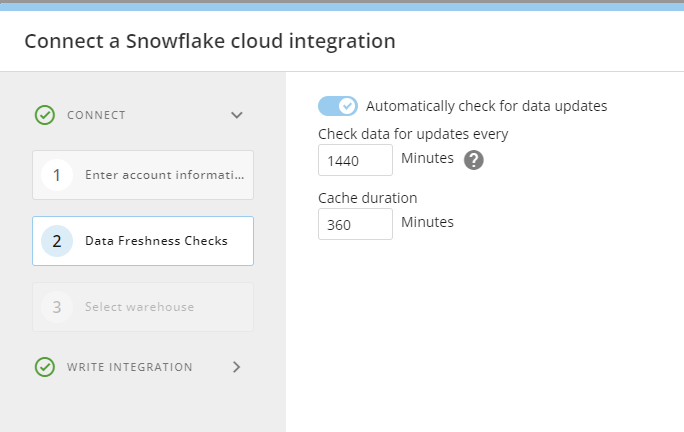
Congratulations! You’ve now connected Domo to Snowflake securely.
Wrapping Up
In this article, I showed how to convert your existing “service” accounts from users to true service accounts in Snowflake, assign a network policy to the accounts to limit connections, and connect Domo to Snowflake securely using the updated service accounts.
I’m happy to see that Snowflake and Domo have security in mind with their connection options and secure connections can be created in just minutes – keeping your data safe without compromising end-user experience.
 Eric Heilman
Nice post. I subscribed. Have a happy day☘️
LikeLike